To use the “Print Anywhere” system at St Luke’s, your device will need to be enrolled into the Self Service system. If your device has not been enrolled, follow the instructions on Enrolling BYO devices to the school network
Before you try to print from your device, you need to ensure that you’ve opened the Papercut app and signed in. If you’re not sure how to do this, tap on your device from the list below:
- Open the Papercut App from your Launchpad
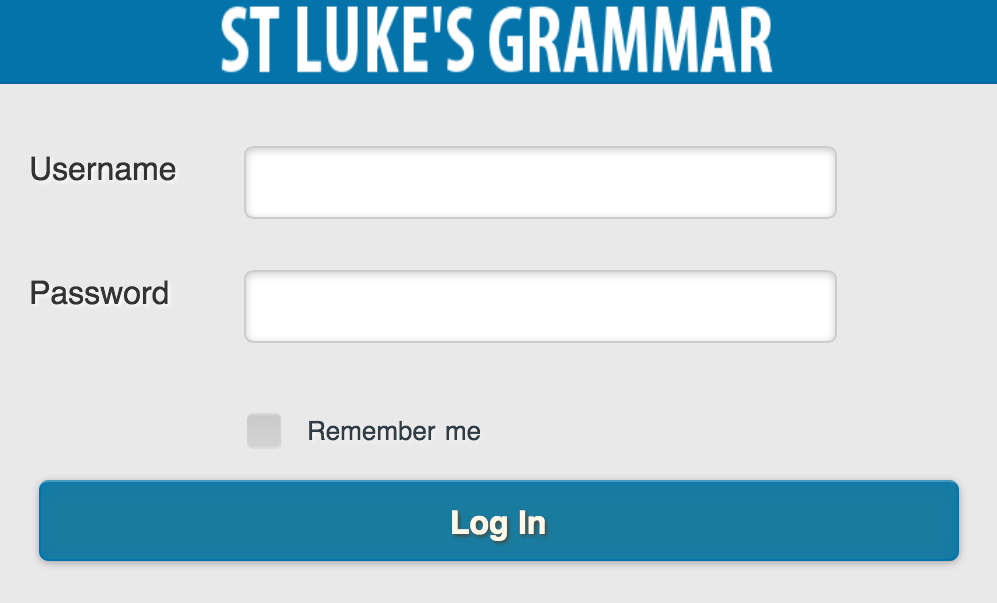
- Sign in with your school username and password
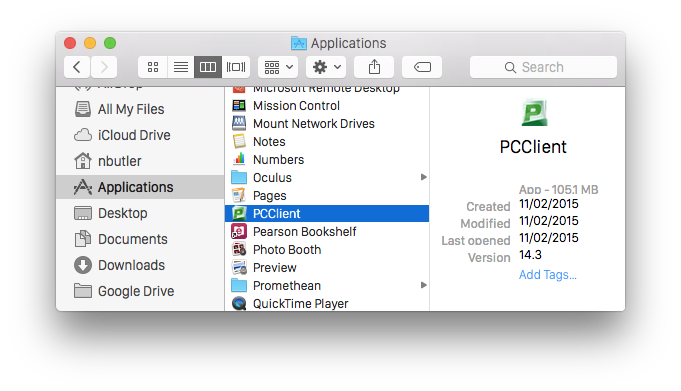
- Open Finder and go to the “Applications” folder
- Double-click the “PCClient” app
- When prompted, enter your school username and password. Optionally, tick “Remember my identity”
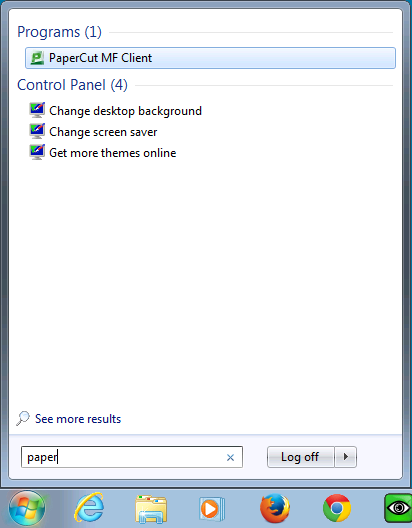
- Open the start menu and type “Papercut”. Windows will begin searching for the app
- Click the “Papercut MF Client” program to open it
Once Papercut is open and signed in, then you should be able to print normally. The “Print Anywhere” printer will appear in the list like any normal printer.
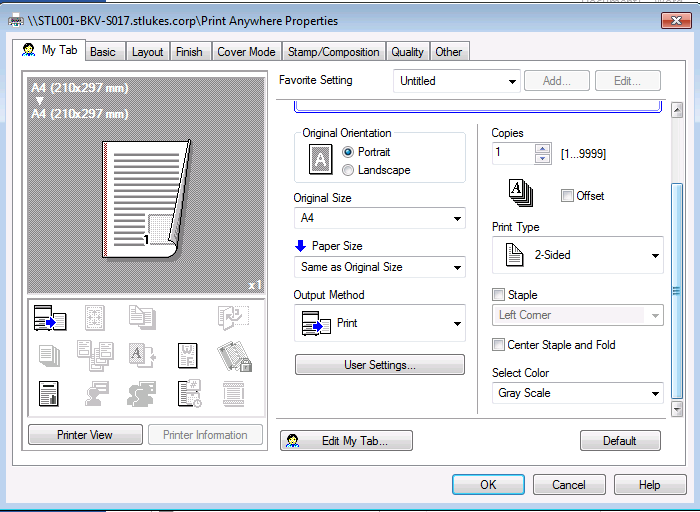
The default for printing at St Luke’s is A4, Double-sided, Black/White. These options can be changed in the Printer Settings/Printer Features areas on your device when printing (not applicable for iPads)
For further instructions about printing options on your device, please select your device type from the list below.
- Open the document you wish to print and locate the print function – this will vary according to which app you are using. The following image is of a document in the Notes app.
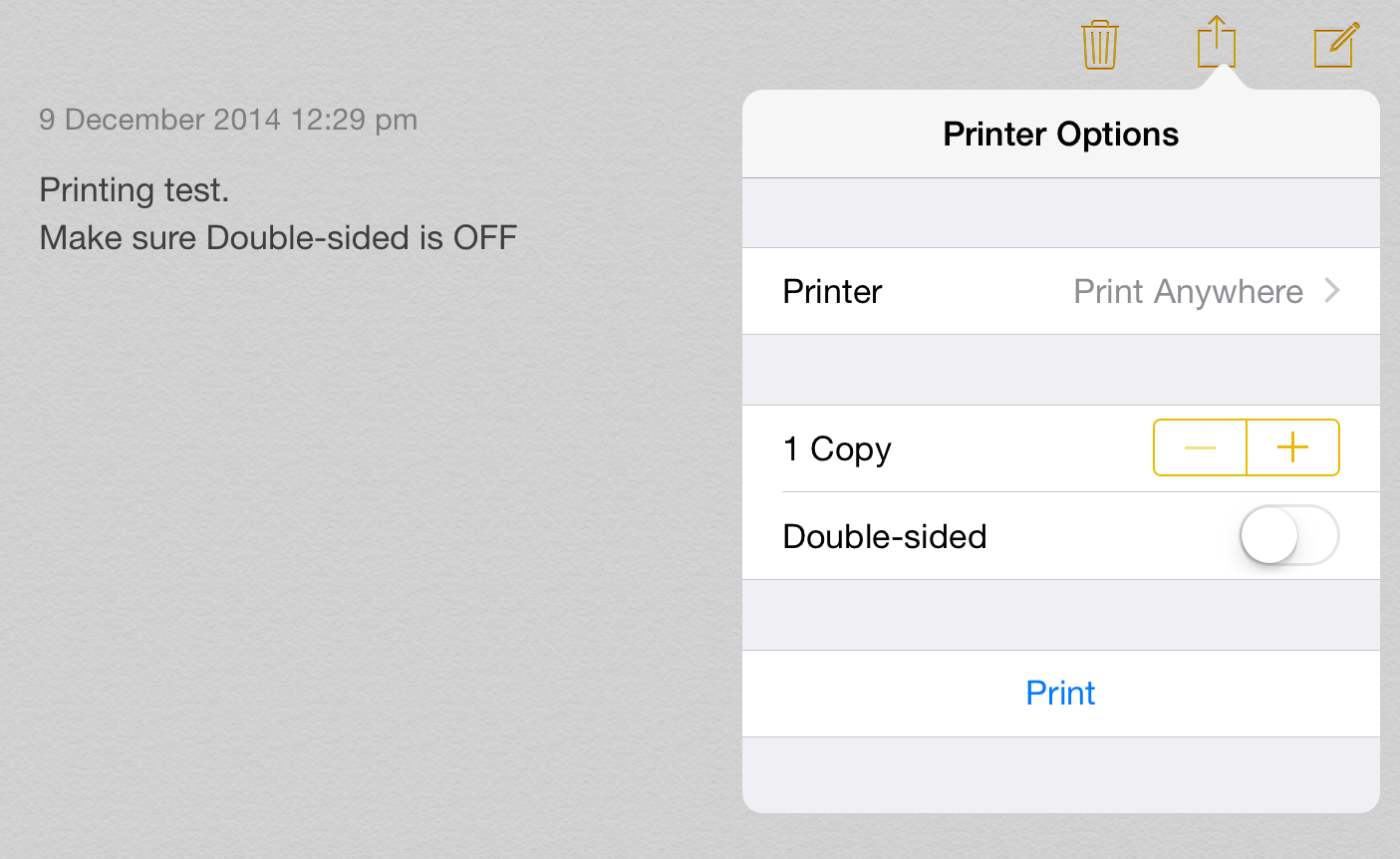
- Select the printer called “Print Anywhere” and the number of copies required. Make sure that you turn Double-sided OFF.
- Lastly, walk up to any printer in the school and swipe your ID card. Your print job will automatically be released to the printer you swipe your card at.
- Open the document/file you want to print and press Command (⌘) + P
- Select the printer called “Print Anywhere”
- If you need to set more options, such as turning off double-sided, you need to open the “Printer Features” section
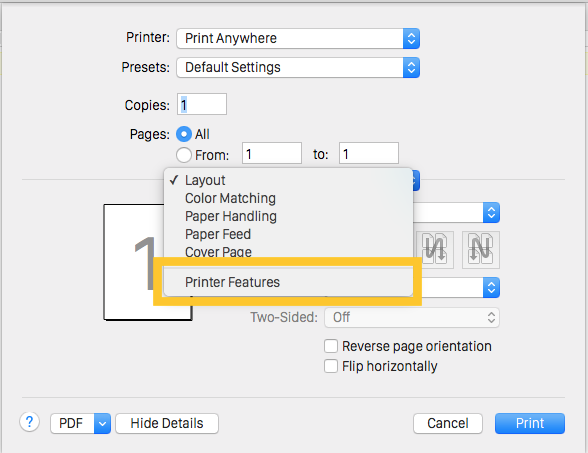
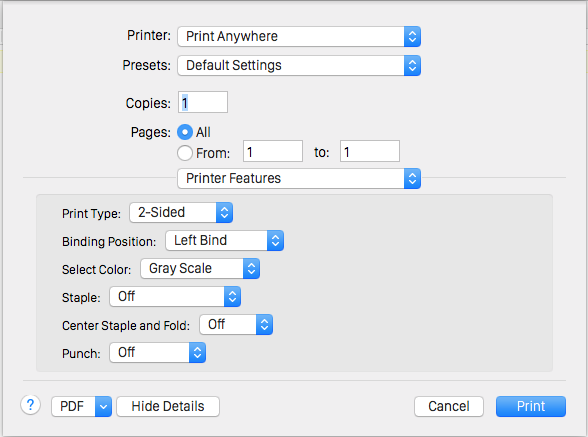
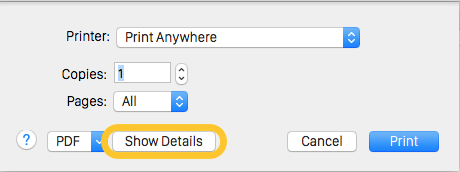
- If you can’t see these options, look for the “Show Details” button
- Open the document/file you want to print and press Ctrl + P
- Select the printer called “Print Anywhere”
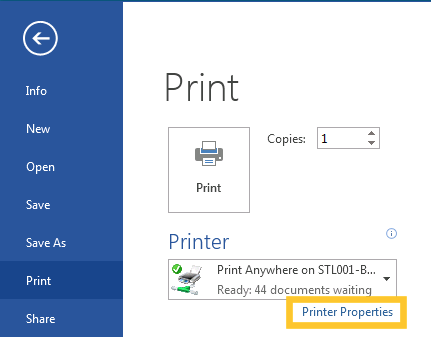
- If you need to set more options, such as turning off double-sided, you need to open the “Printer Properties” section