Teachers: Follow these instructions to create an assignment in Moodle to which students can submit their work and have it processed through Turnitin. The Turnitin class is automatically created with the students enrolled in your particular Moodle course.
Students: Follow these instructions on how to submit an assignment into Turnitin via Moodle.
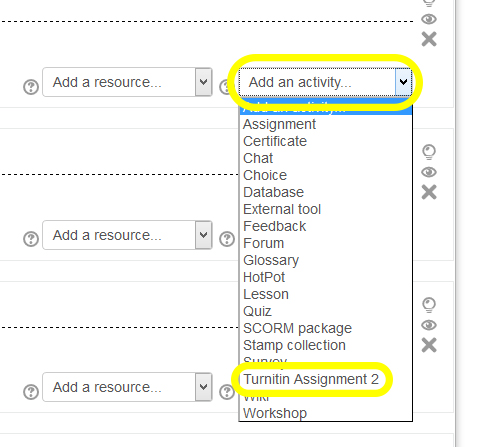
- Under Add an activity… select Turnitin Assignment 2
- Fill out the required fields. Most of the settings will be familiar to you already from Turnitin.
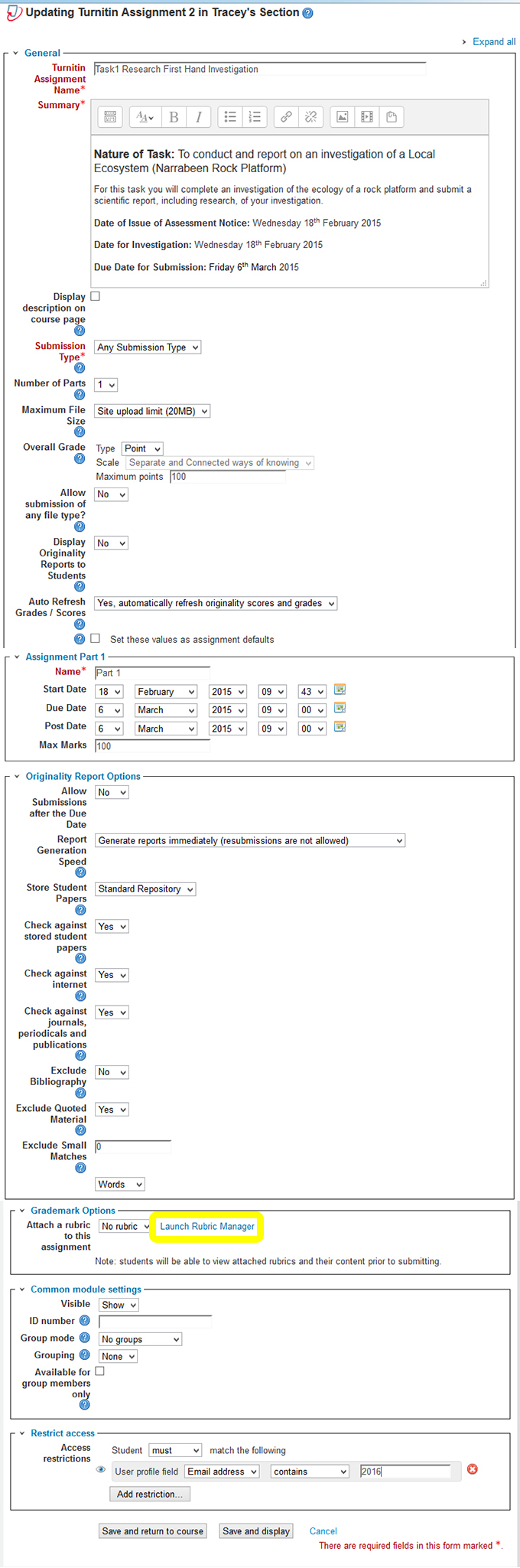
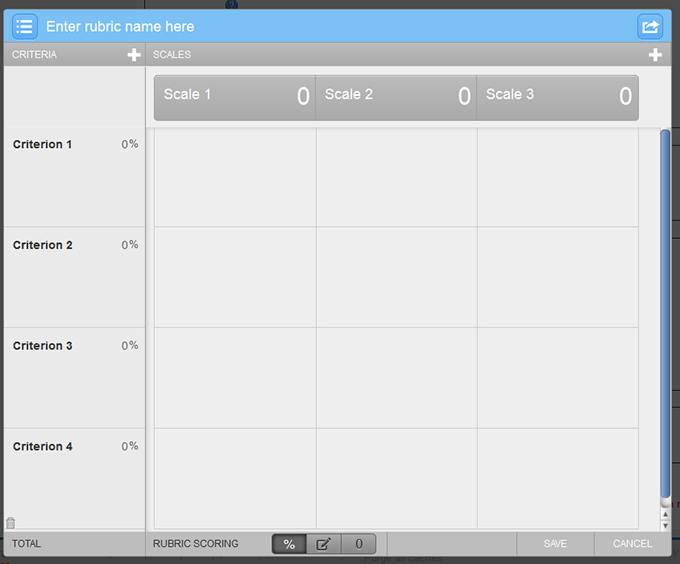
- You will notice from the screen shot above that you can Launch Rubric Manager from within the activity settings and create a rubric for the task
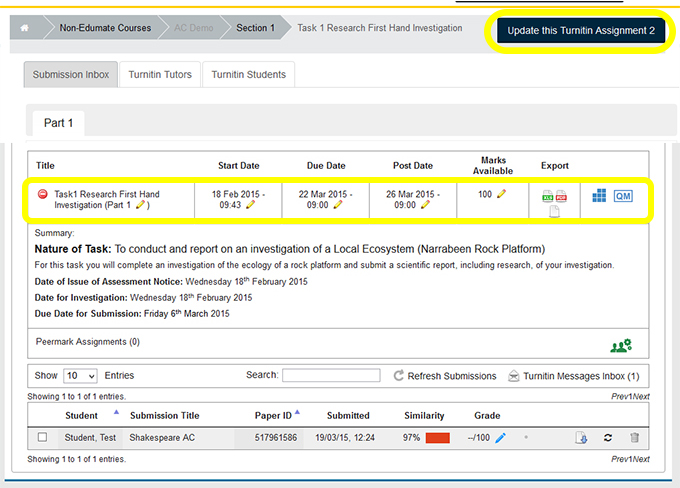
- You can edit your turnitin assignment by selecting the Update this Turnitin Assignment 2 button. You can also select the pencil tool under each of the headings: Title; Start Date; Due Date; Post Date and Marks Available. You can launch Rubric Manager and QuickMark Manager. You can also export the results as a .xls .pdf or .zip file.
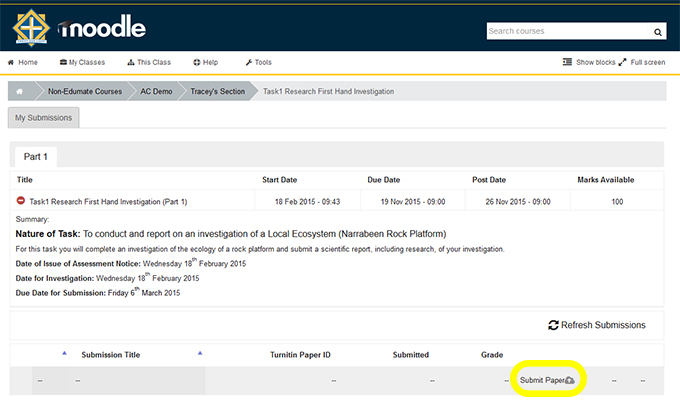
- Select the Task in Moodle

- Select Submit Paper
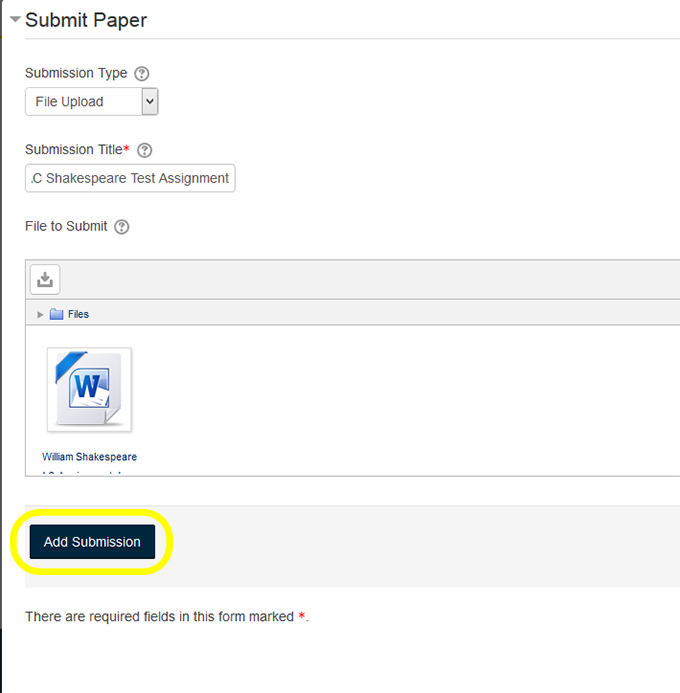
- Upload your assignment by dragging the file into the box or browsing for your file, then select Add Submission
- You will then receive a digital receipt upon a successful upload