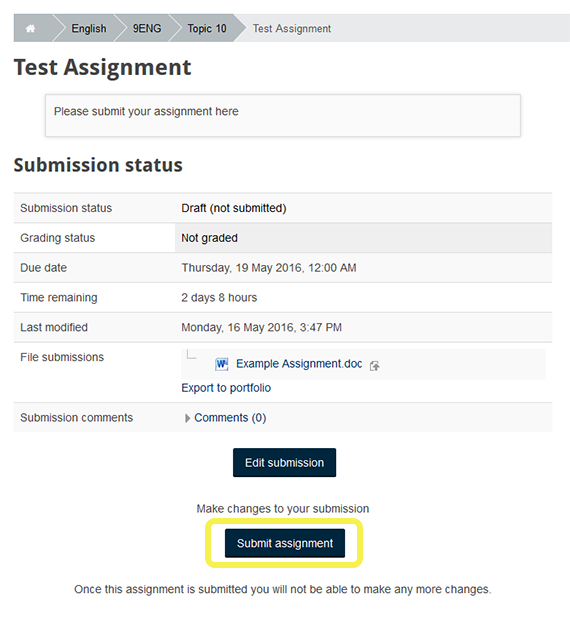
Teachers: Follow these instructions to create an assignment in Moodle to which students can submit their work.
Students: Follow these instructions to submit an assignment in Moodle.
- Under Add an activity… select Assignment

- Fill out the required fields. If you need any help deciding what to select in each field, click on the help symbol
 and a help box will appear. There are many options available when setting up an assignment. For detailed help on each setting click here.

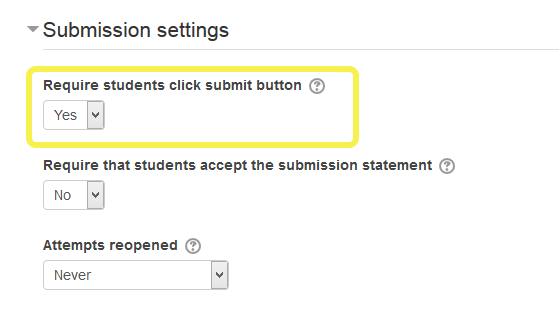
- In order to prevent students being able to edit their submission, under Submission settings, change the Require students click submit button to Yes
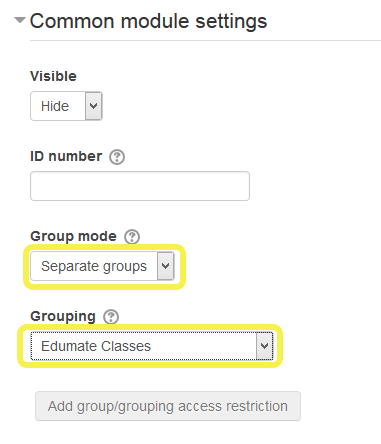
- In order to be able to view/grade only your class, select Separate groups under Group mode and Edumate Classes under Grouping
- Save and return to course.
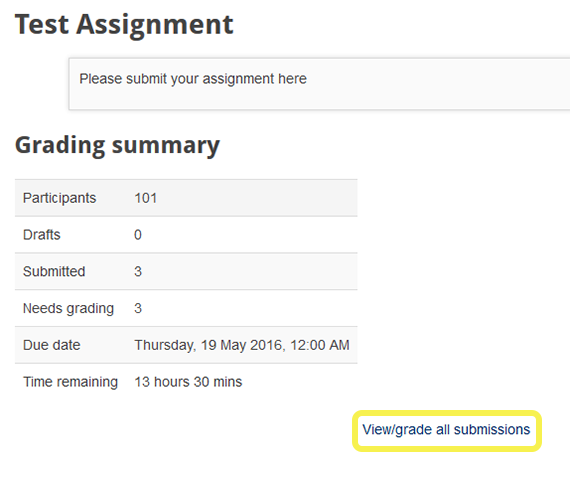
- In order to view/download student assignments, return to the assignment activity and select View/grade all submissions
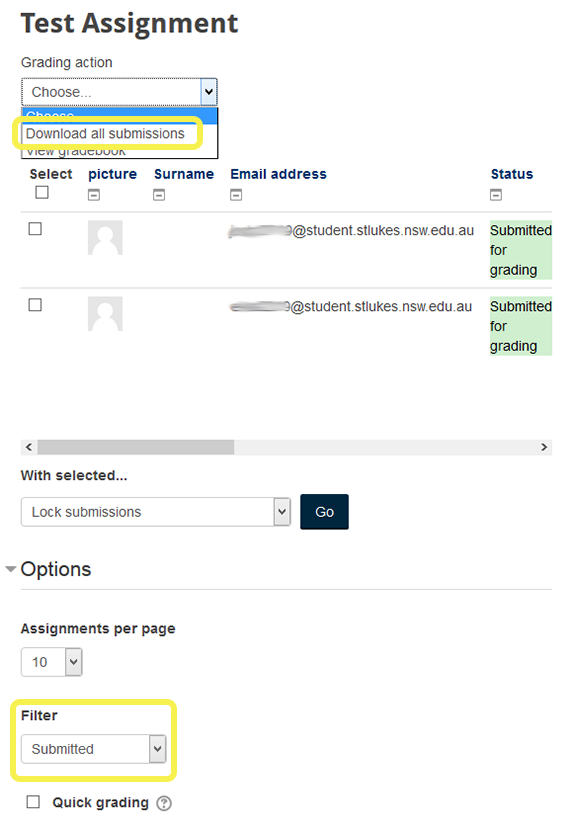
- Under the Choose… drop down box select Download all submissions. If you want to see which students have submitted and which have not you can Filter by Submitted or Not submitted
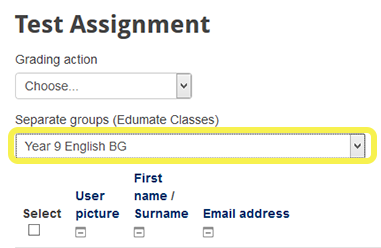
- When setting up the assignment if you have chosen Separate Groups under Group mode and Edumate Classes under Grouping you will be able to select the specific class you wish to view/download submissions for
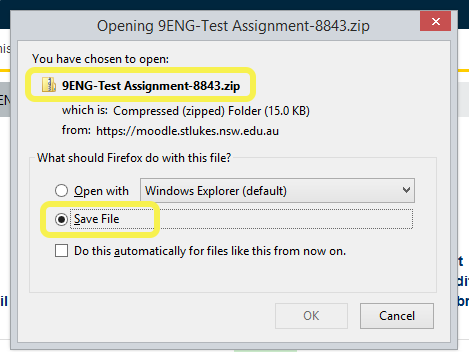
- You will be asked to save a zipped folder. You can then view/edit the student assignments.
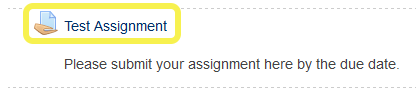
- Select the Task in Moodle
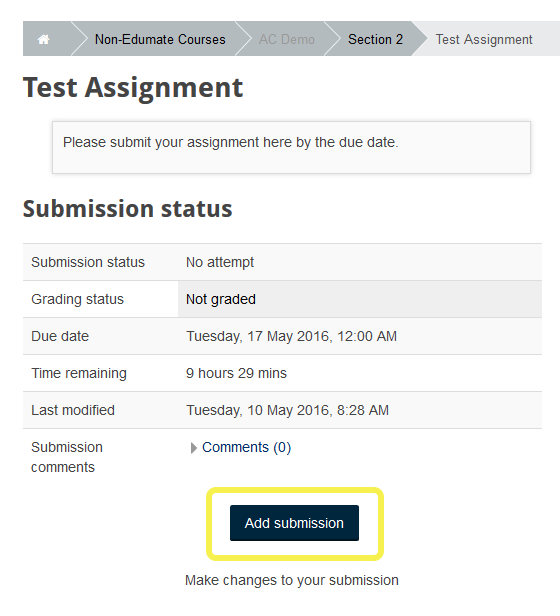
- Select Add submission
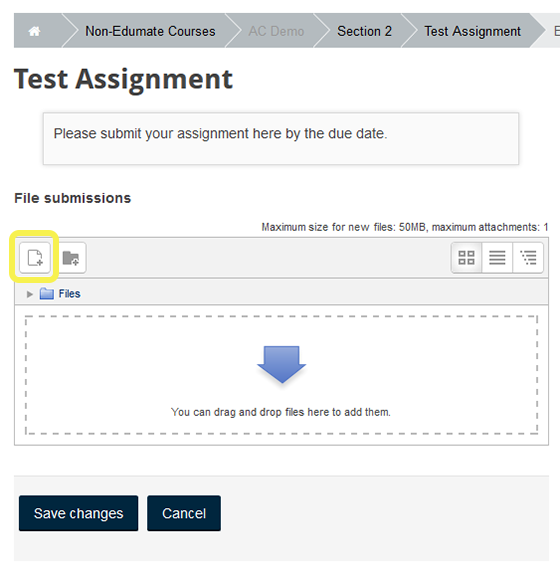
- You can drag and drop your file into the box or search for your file and upload it using the add file icon then Save changes
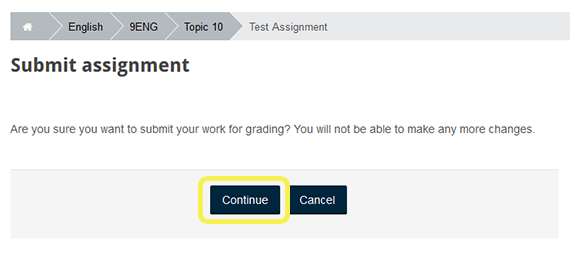
- Select Submit assignment. Once you do this you will not be able to access your file again.