Teachers: Follow these instructions to create an assignment in Canvas to which students can submit their work.
Students: Follow these instructions to submit an assignment in Canvas.
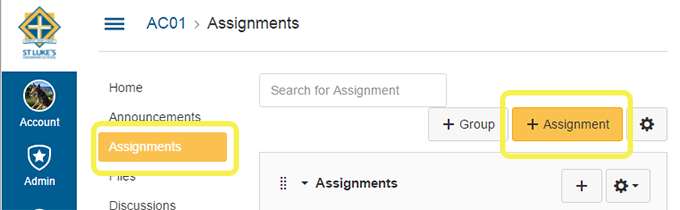
- Select the Assignments tab of your course and then the Add Assignment button
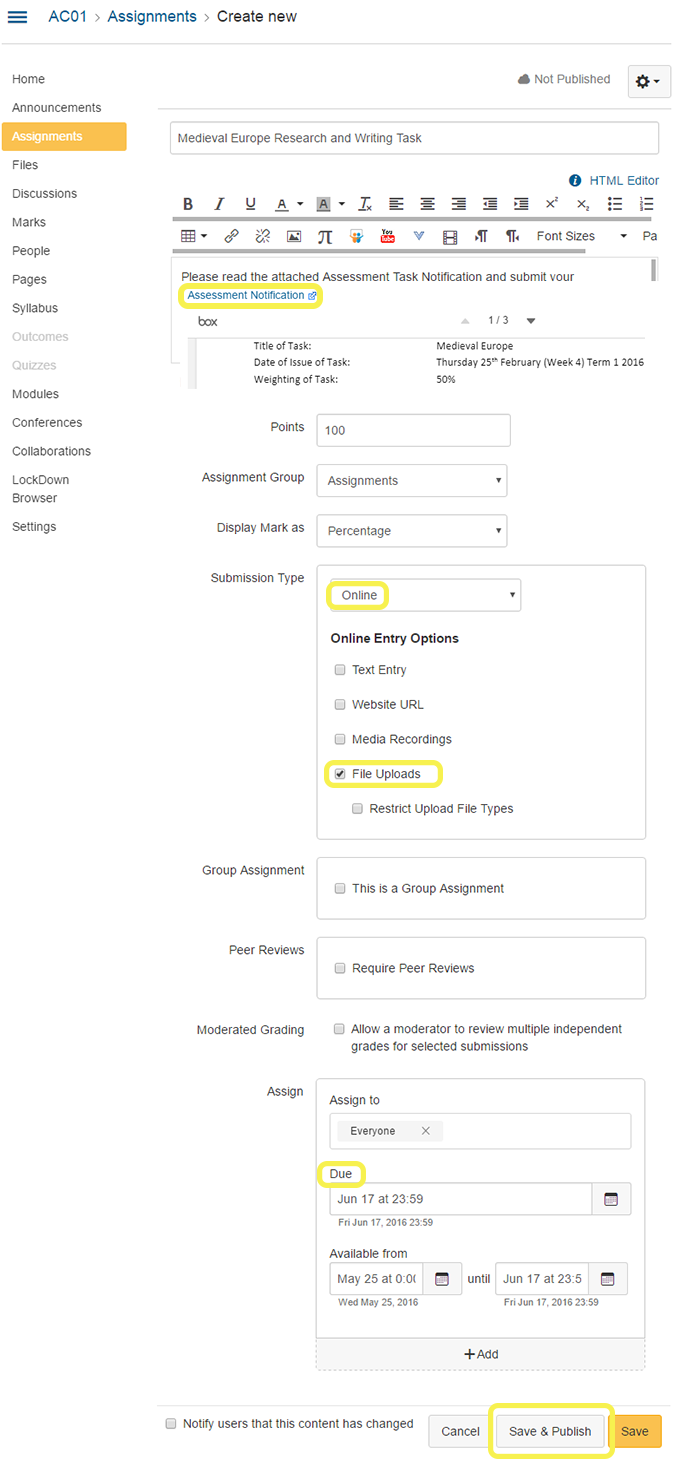
- Here you can enter a title and description and upload the Assessment Notification, assign points and choose how you want to display the marks. You can select how you want students to upload their assignments and set due dates etc. Save & Publish
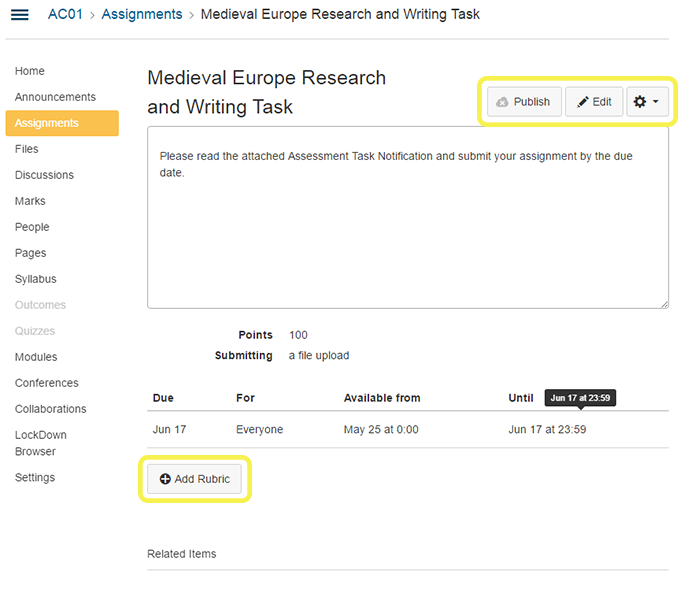
- This will bring you to the final steps of creating an assignment. You can edit your assignment and create a rubric to accompany the assessment. When you are happy with the assessment select the Publish button
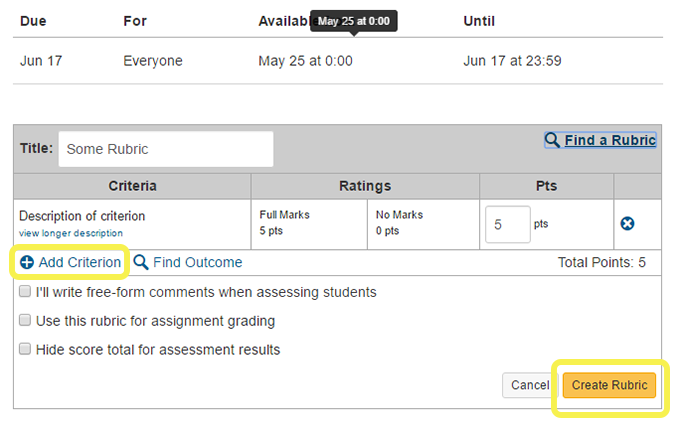
- To create a Rubric, select the +Add Rubric button then Add Criterion and assign points. When finished select Create Rubric.
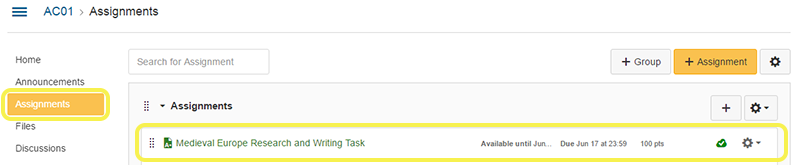
- When you select the Assignments tab you will see the newly created assignment on the page
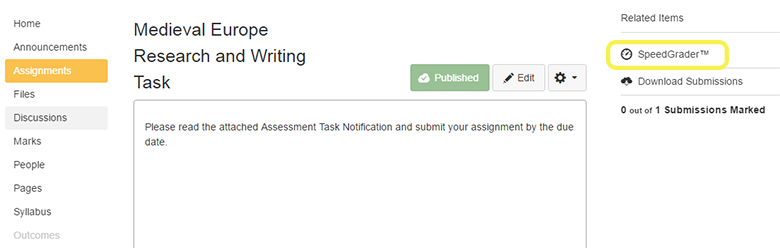
To view/mark student assignments
- You can view and mark assignments using the SpeedGrader tool in Canvas
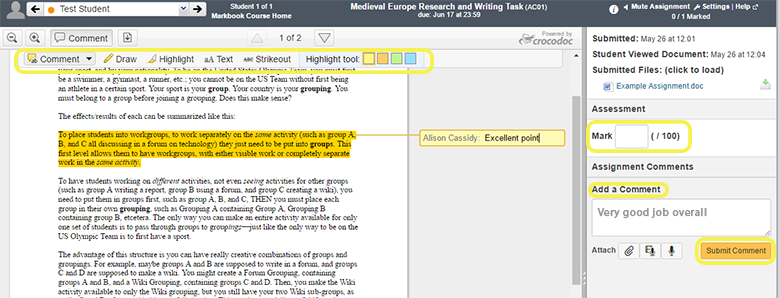
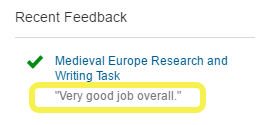
- You can assign a mark and add comments both directly into the document and as a submitted comment that students will then see on their Canvas course
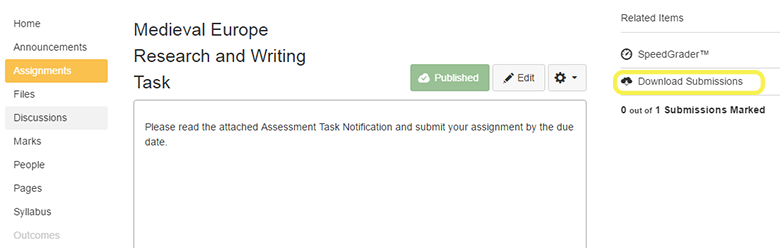
- Alternatively you can download student assignments. A .zip folder will be downloaded
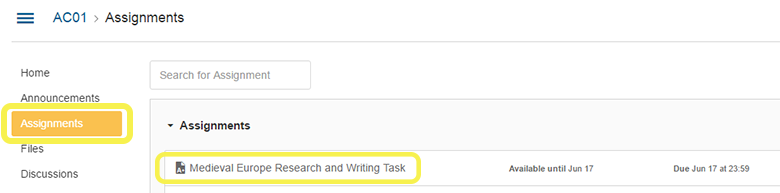
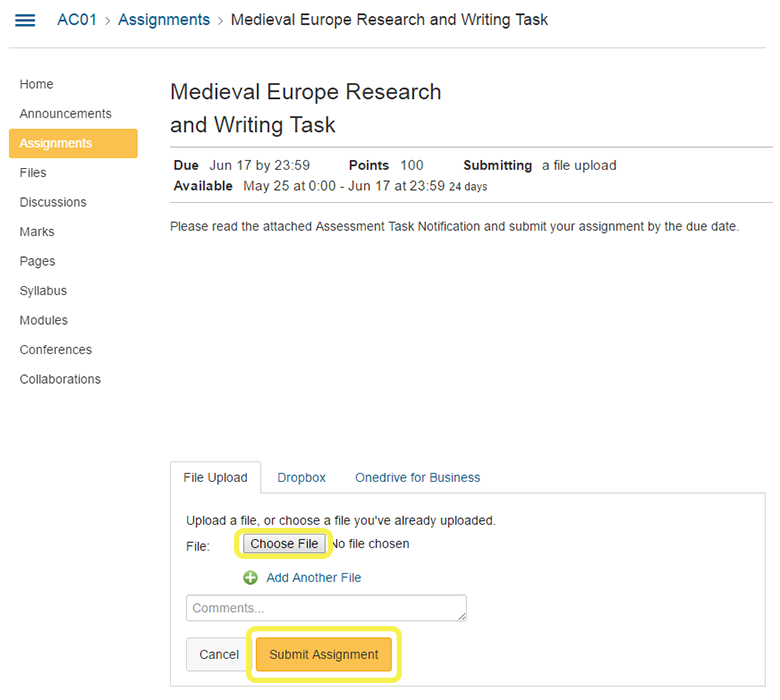
- Select the Assignments tab on the left and then select the applicable assignment
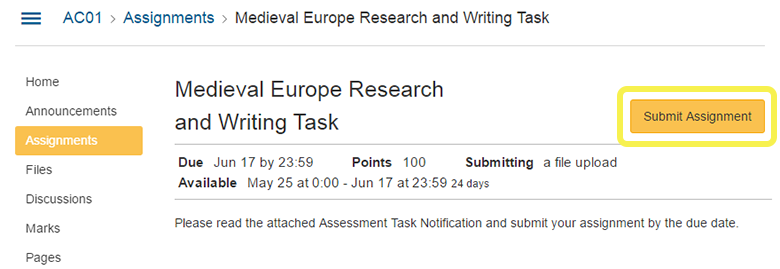
- Select the Submit Assignment button
- Under the File Upload tab, select Choose File. Browse to and select your assignment file and then select the Submit Assignment button
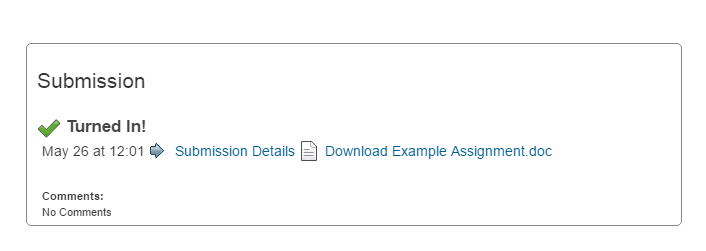
- You will then see the following screen showing that you have successfully submitted your assignment