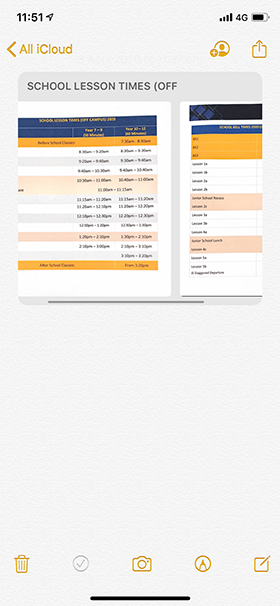
You may be required to scan various documents and present them in one single pdf or file. Below are some options to help you do this.
Microsoft Lens for iOS or Android allows you to scan notes, photos, whiteboards and other types of documents through your mobile device.
Download and install the Office Lens app on your iPhone, iPad, or Android device. Open the app and give it the necessary permission to access your photos and camera.
Point your device’s camera at the document you want to scan and select the format that best matches the item you are scanning (ie: whiteboard, document, business card, or photo). Turn the flash on or off or set it to automatic. To best capture the item, position your device so the border frames it and then snap the picture.
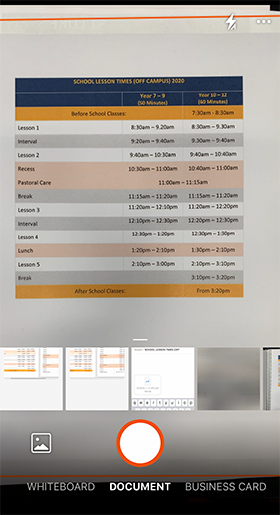
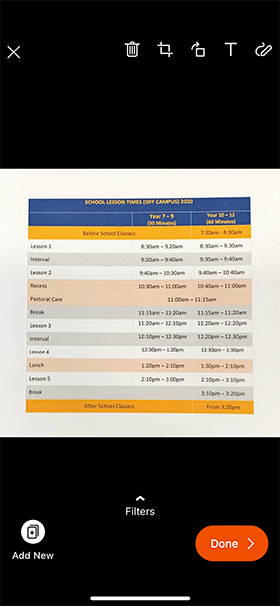
Once you have taken the photo you can edit it by pinching with your fingers, using the crop tool, adding text etc. When you are finished editing you can select Add New to capture a subsequent page of your document or select Done if you have finished.
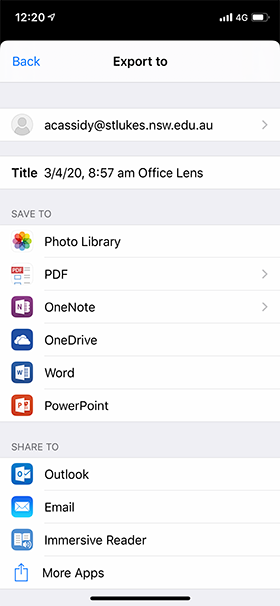
You can then share it. The Export to options are vast and you can also change the Title at this point.
Open the Notes app
Create a new note
Press the Camera button at the bottom

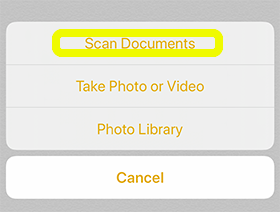
Select Scan Documents
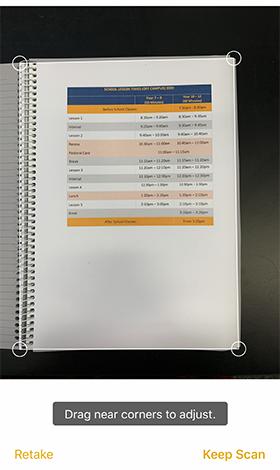
Take photos of the pages you want to scan into one file
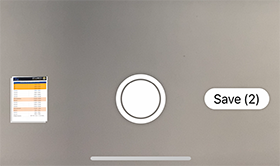
Select Save (number of pages) when you are finished
You can then share this note via email or save it to your files (such as Google Drive)