The following instructions are to help Parents make online bookings for Parent Teacher Interviews.
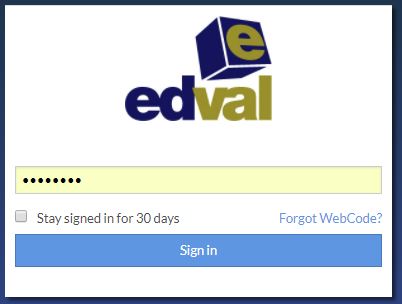
- Enter the Event URL provided by the school and enter the booking code emailed to you.
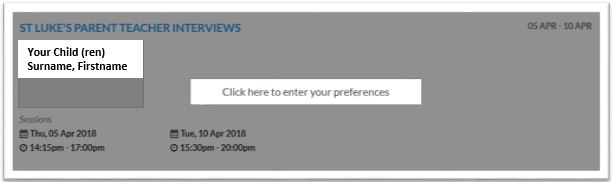
- Select your event by clicking on the event box with the event details. “Click here to enter your preferences”.
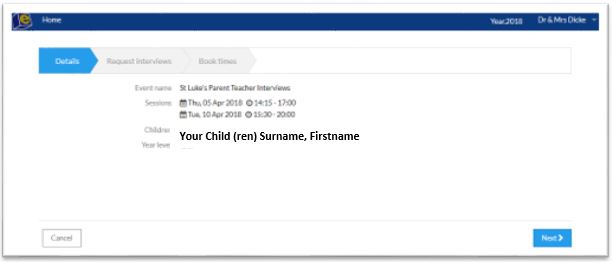
- Check your child/children’s name(s). All of your children should be listed. Click “Next” (bottom right) to proceed.
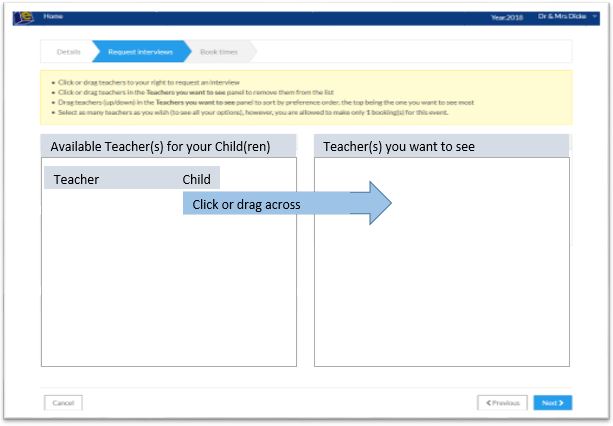
- Select your child/children’s teacher that you want to see.
In the Junior School select your child/children’s classroom teacher.
In the Senior School select your child/children’s subject teachers .
Click or drag the “teacher/child name box” from the left to the right. Note, on the right, you can order the names of the teachers in preference order.
Click ‘Next’ (bottom right) to proceed.
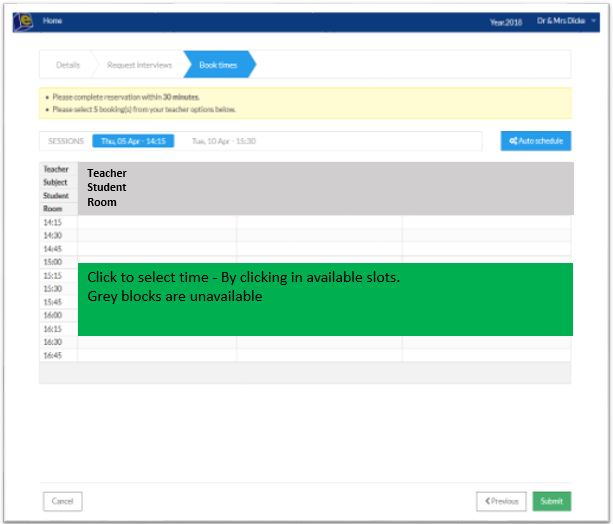
- Select available interview times.
The interview times can be manually selected or you can use the auto-schedule button to have the system automatically schedule the event for you.
Select “Submit” when you have finished.
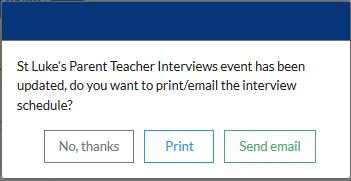
- Print or Email the interview schedule.
- Log out of the system.
For Zoom Interview Instructions please select Parent-Zoom-Instructions