Solution 1
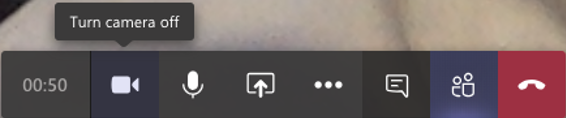
Make sure the camera is turned on in your teams call
Solution 2
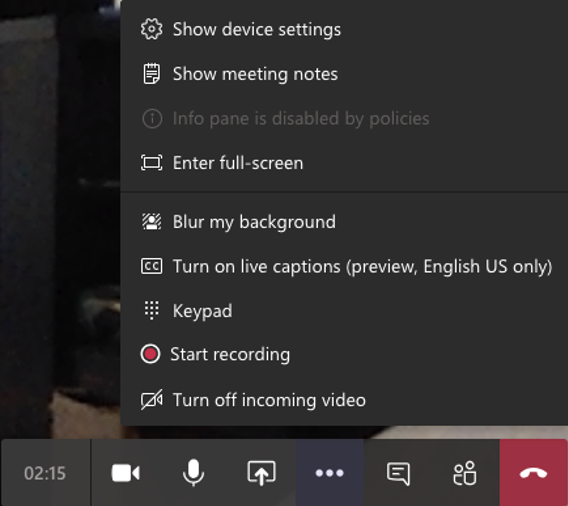
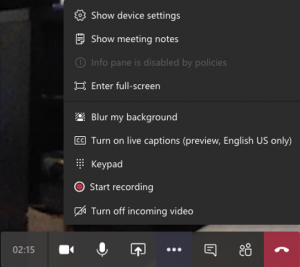
Click the More actions (3 dots) and select Show device settings
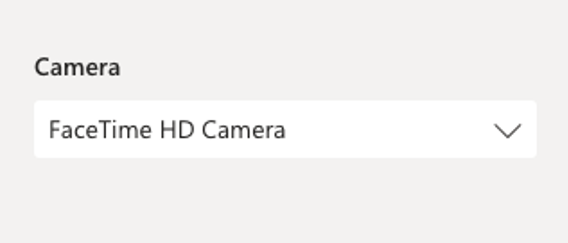
On the right of the screen, make sure the correct camera is selected from the drop-down menu
Solution 3: For Mac
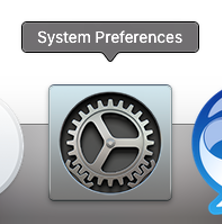
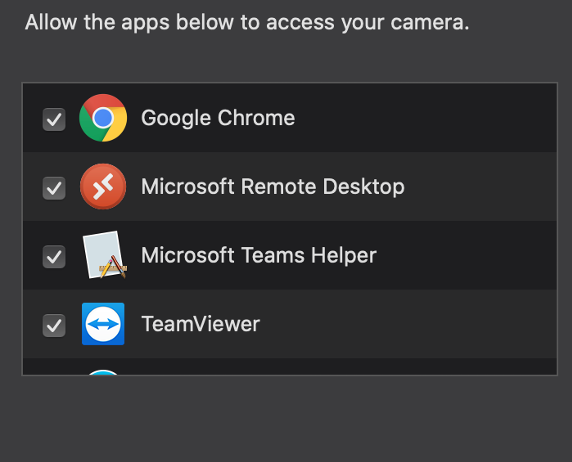
Open System Preferences
Click Security & Privacy

Click Camera in the left column

Make sure Microsoft Teams is ticked
Solution 3: For Windows
Select the Windows Menu, Privacy, Camera
Allow access to the camera on this device
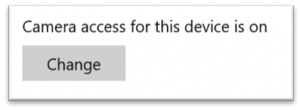
Turn ON, Allow apps to access your camera

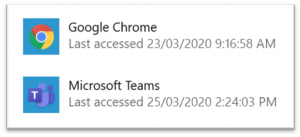
Turn ON, Allow desktop apps to access your camera
Solution 1
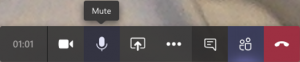
Make sure the mic is turned on in your teams call
Solution 2
Click the More actions (3 dots) and select Show device settings
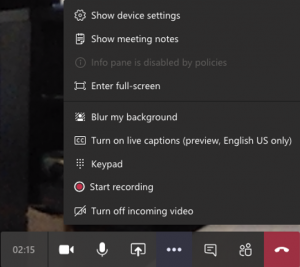
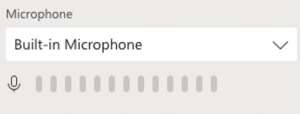
On the right of the screen, make sure the correct microphone is selected from the drop-down menu
Solution 3: For Mac
Open System Preferences
Click Security & Privacy
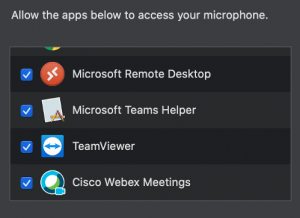
Click Microphone in the left column

Make sure Microsoft Teams is ticked
Solution 3: For Windows
Select the Windows Menu, Privacy, Microphone
Allow access to the microphone on this device
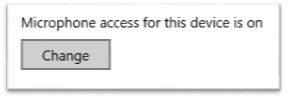
Turn ON, Allow apps to access your microphone
Turn ON, Allow desktop apps to access your microphone
Click the More actions (3 dots) and select Show device settings
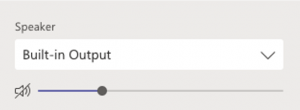
On the right of the screen, make sure the correct Speaker is selected from the drop-down menu & the volume is up
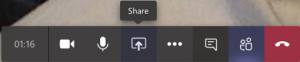
Click the Share icon
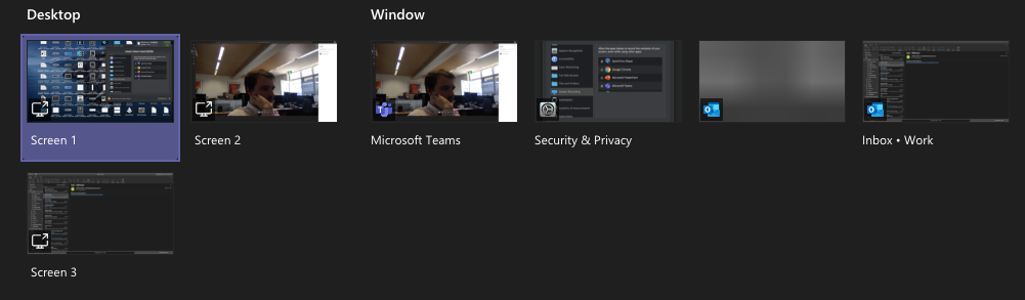
Click the screen you would like to share. Alternatively rather than sharing your whole screen, you can just share a window for example, just your google chrome window.
Click the Share icon
Click Browse and then Upload from my computer
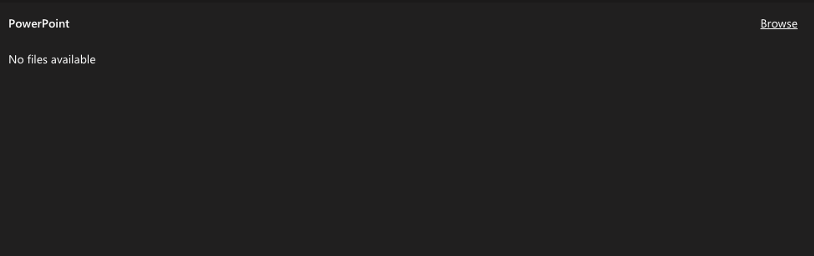
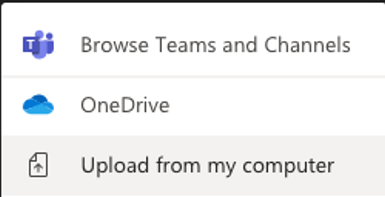
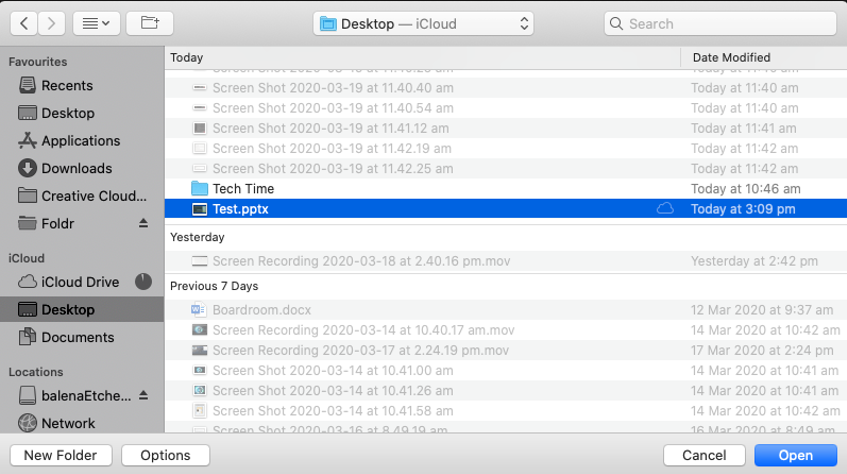
Select your PowerPoint and click open. You will then be able to run the PowerPoint for all participants in the call.
To type messages to the participants of the call click the conversation icon. This will bring up a bar on the right of your screen allowing you to communicate with the participants using your keyboard.
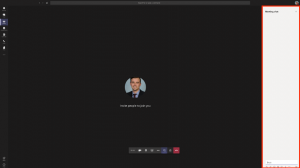
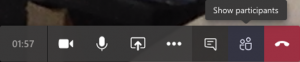
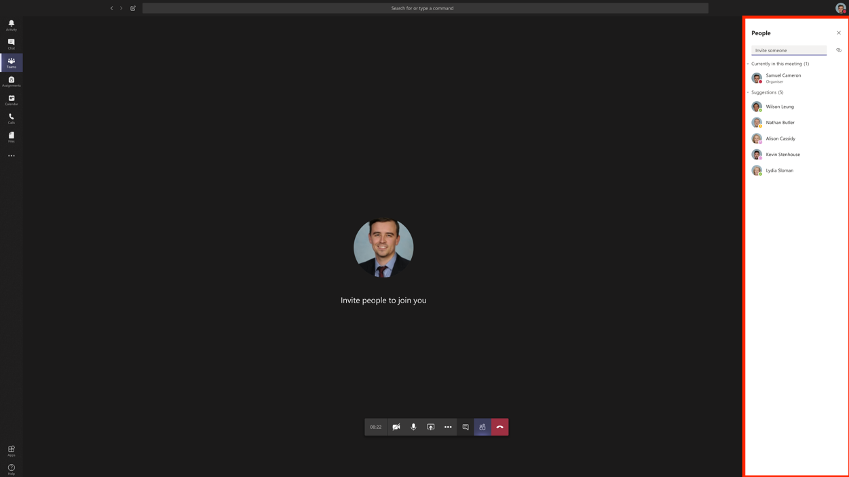
Click the Show participants icon. This will bring up a bar on the right of your screen showing the people currently on the call.
Click the 3 dots for more actions, select Start recording to record the entire call. Once the call is finished the video is uploaded by teams and a link is sent to you via email. Depending on the length of the call this can take quite a while to complete.
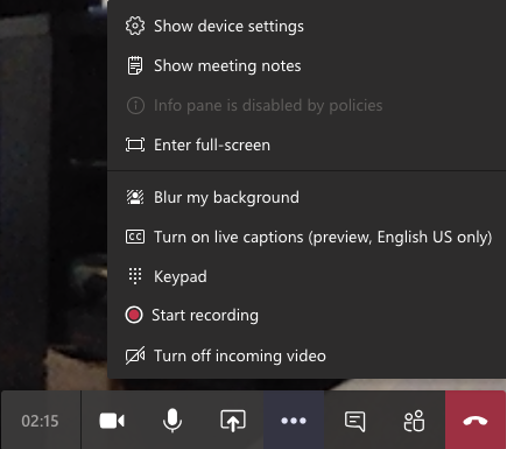
Click the 3 dots for more actions, select Blur my background. This allows you to blur the background keeping your location private or it can be helpful if what’s around you is distracting.