To access the internet at St Luke’s Grammar School, connect to the Wifi with the following information:
| SSID | St Lukes Grammar |
| Username | <Your school username> |
| Password | <Your school password> |
To ensure that your laptop settings are correct, follow the instructions by clicking the button below:
IMPORTANT Note for Windows Computers: You may need to check that your device is not set to automatically detect network proxy settings.
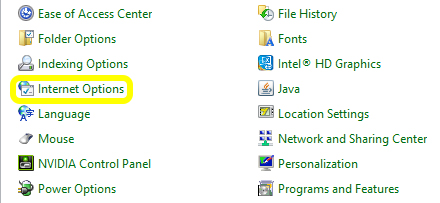
- Open the start menu, and search for “Control Panel”. In Control Panel (view as Small Icons) select “Internet Options” from the list
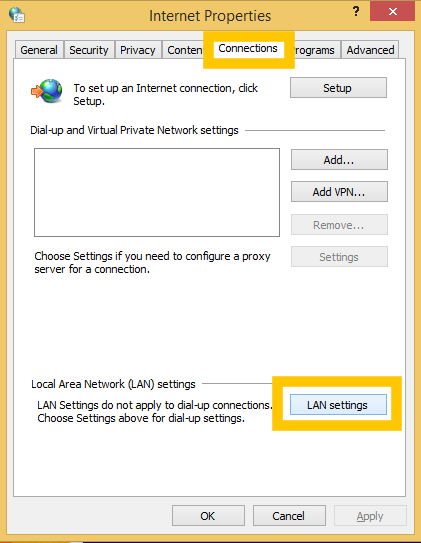
- Open the “Connections” tab, and click the “LAN Settings” button
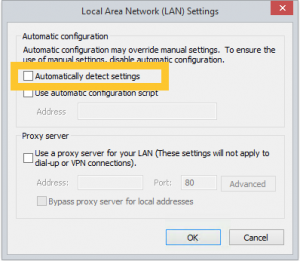
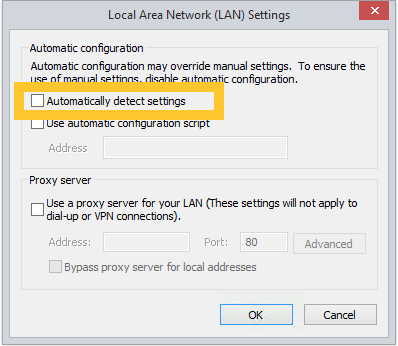
- Un-Check the “Automatically detect settings” option
- Click “OK” then “Apply”
- Open the Settings app.
- Tap the Wi-Fi and select St Lukes Grammar.
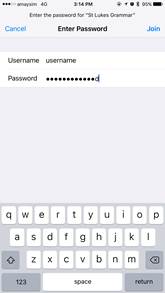
- Enter your School username and password and tap Join.
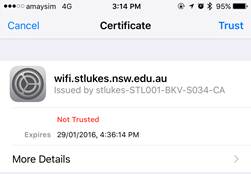
- Tap on Trust.
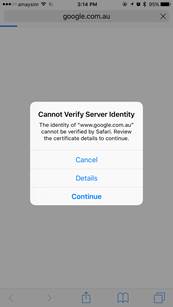
- Open an Internet browser and go to cert.localnetwork.zone. A pop up may appear, tap Continue.
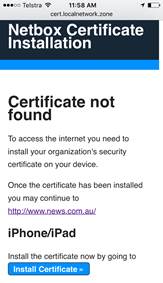
- Once redirected to this page, tap the blue Install Certificate button.
- Install the certificate by tapping Install. You will be prompted to confirm by tapping Install again.
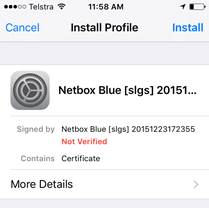
- Your device is now configured to use St Luke’s Grammar Internet.
- Open the Settings app.
- Tap on WiFi and select St Lukes Grammar.
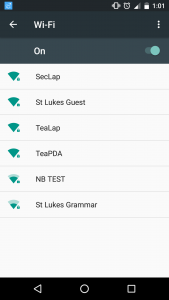
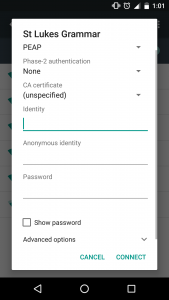
- Enter your School username in the Identity field and School password in the Password field. Anonymous identity can be left blank. Tap CONNECT.
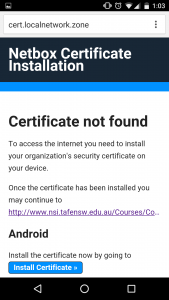
- Open an Internet browser and go to cert.localnetwork.zone. Tap on the blue Install Certificate button.
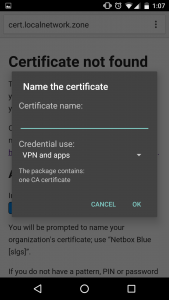
- Tap on Credential use: and select WiFi. Type st lukes netbox in the Certificate name field and tap OK.
- Dismiss the ‘Network may be monitored message’ and your device is now configured to use St Luke’s Grammar Internet.