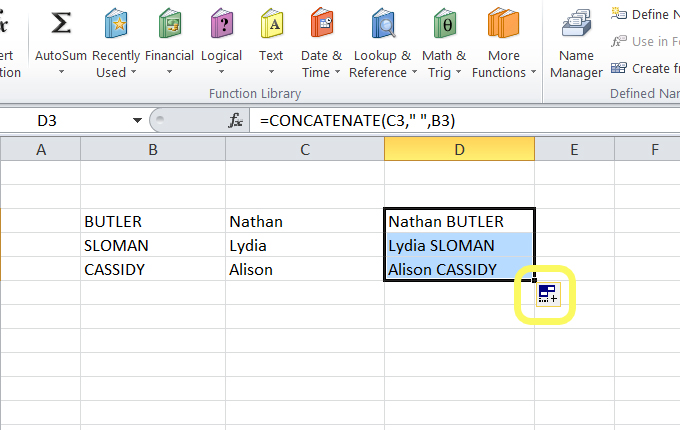
Manipulating Text in Excel
There are many different ways to manipulate and format text in Excel.
The following example shows one way to manipulate text from SURNAME, Firstname into Firstname SURNAME
- Highlight the cells you want to change. Select the Data tab, then Text to Columns. Choose Delimited then Next
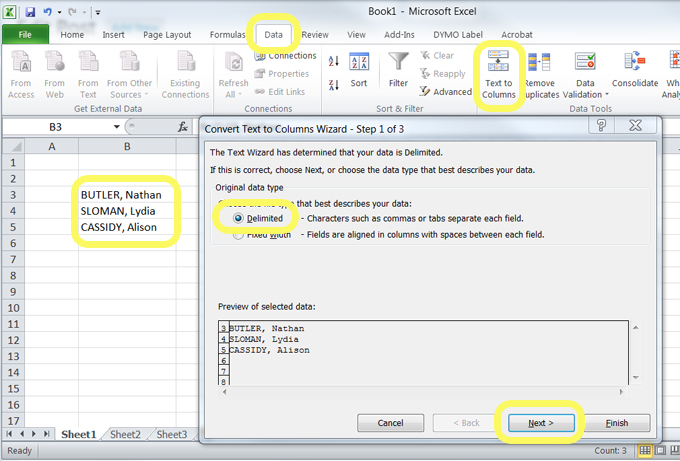
- Select Comma and Space, then Treat Consecutive delimiters as one. Then select Next
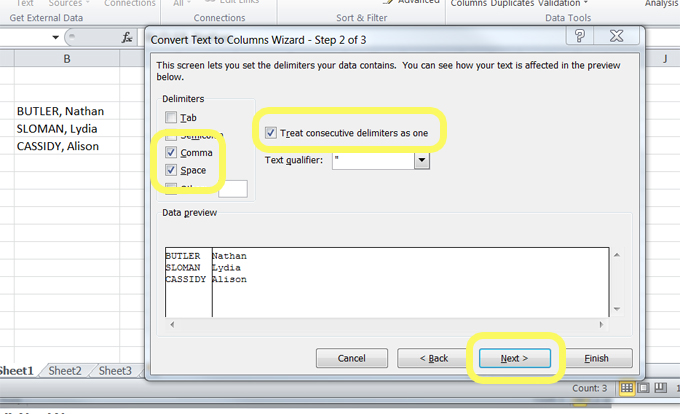
- The data will now be split into two columns

- To join the data together into one column you will need to concatenate it. Select the cells that you want the combined data to go into. Select Formulas, then Text, then CONCATENATE
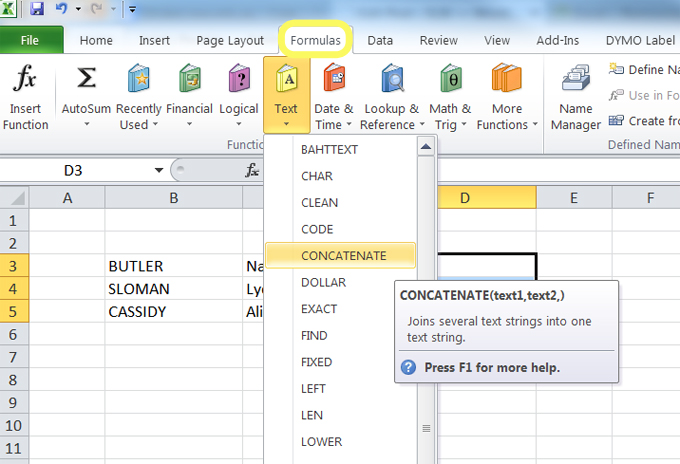
- Select the Firstname cell as Text1, then put a space as shown ” ” in Text2, then select the SURNAME cell for Text3. Select OK
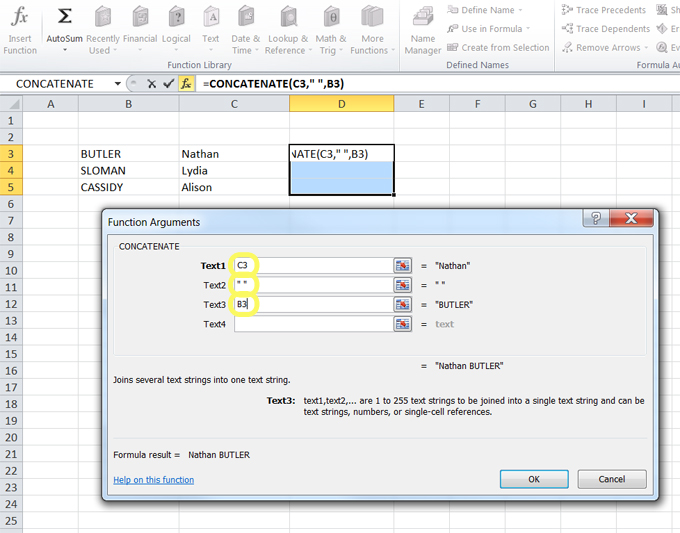
- The first cell in your selection will then appear as required. Drag the cross on the bottom right of the cell down to fill any remaining cells with the same formula