St Luke’s Edumate Portal provides parents with the facility to access account details and pay school fees. You can access this online using the Edumate portals for the Dee Why campus and the Bayview campus. If you need help logging in or require new log on credentials, please contact [email protected]
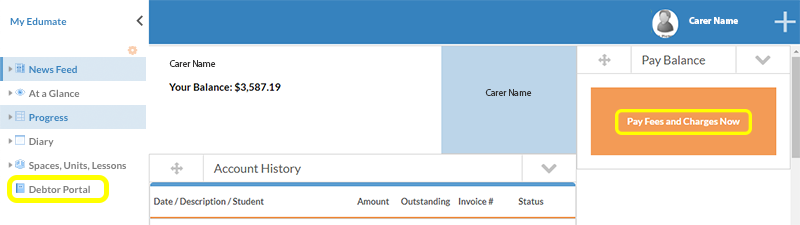
- Log into the Edumate portal using the log in details provided to you. From the home screen, select the Debtor Portal tab from the menu on the left.
- You are able to view your current balance, charges and prior bills.
- Select the Pay Fees and Charges Now button to make a payment.
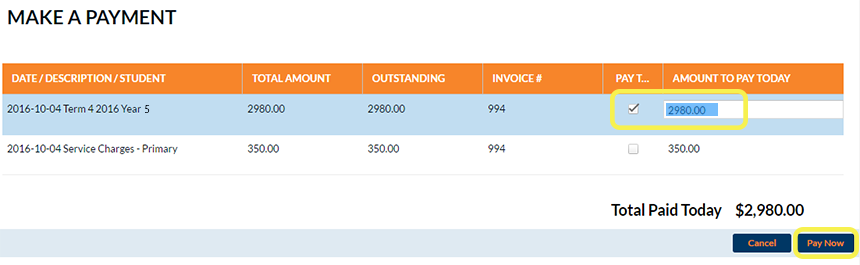
- Double click the pre-populated amounts to change them. Tick the corresponding check box to nominate what you are paying. Select Pay Now
- You will have an opportunity to make a voluntary donation before moving to the Finalise Payment screen, where you can enter your credit card details or select a one off direct debit.
Some of the following information may be out of date due to the Edumate upgrade. It will be updated as soon as we have access to it.
- You can also set up and configure direct debit installments
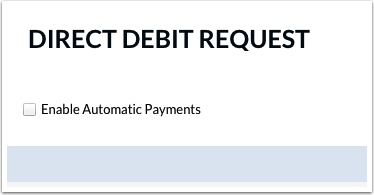
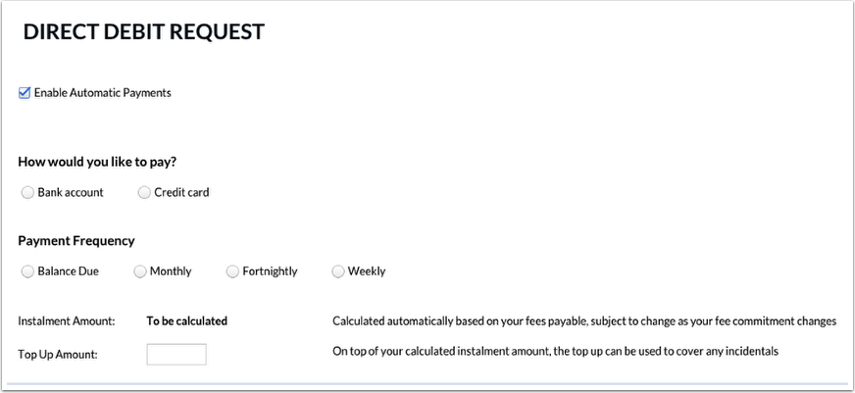
- In the Direct Debit Request screen click on the ‘Enable Automatic Payments’ tick box to reveal the automatic payment options.
- Payment method and frequency options are displayed.
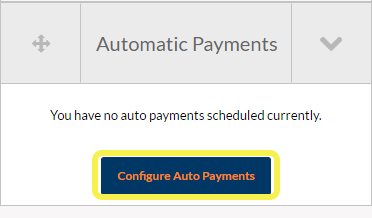
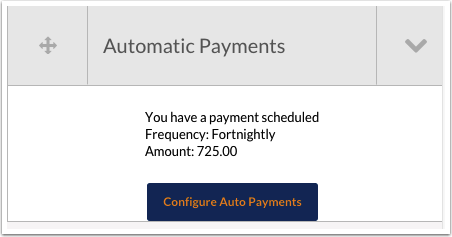
- If auto payments are already activated the portal will display the frequency and amount currently being paid. Click on the ‘Configure Auto Payments’ button to change the settings.
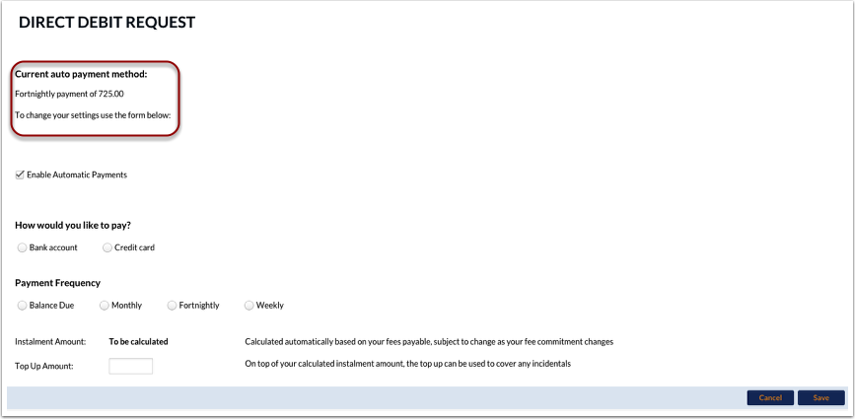
- The current settings are again displayed in the Direct Debit Request screen and also options for changing these.
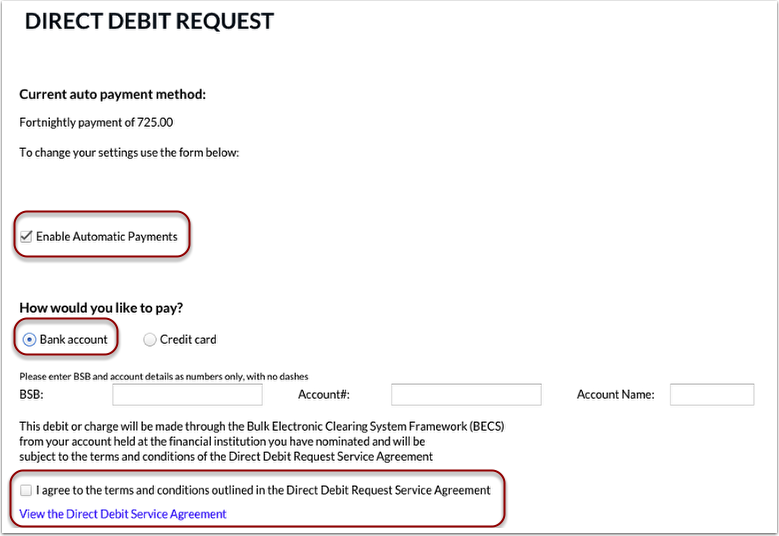
- The direct debit facility can be deactivated by clicking on the tick box next to ‘Enable Automatic Payments’.
Clicking on the ‘Bank Account’ option will reveal fields for entering bank account details.
There is an active link for displaying the Direct Debit Service Agreement as well as a corresponding tick box to confirm agreement with the terms and conditions set out in the agreement. The tick box needs to be ticked before you can proceed.
- Choosing the ‘Credit Card’ option will display fields for entering in card details.
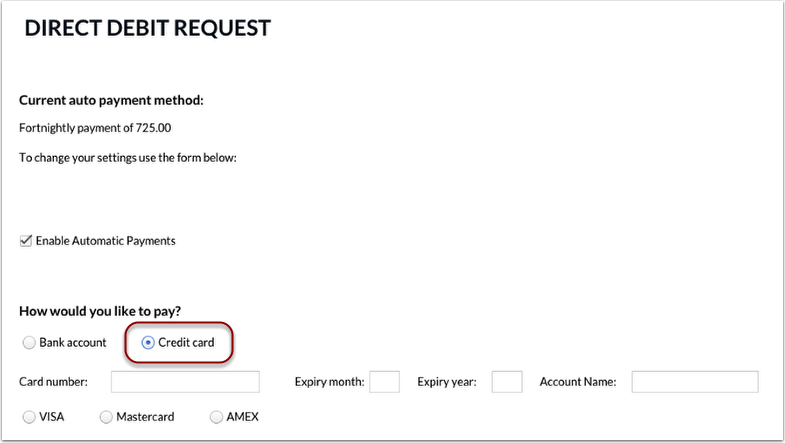
- In the Payment Frequency section of the screen, select the desired frequency of payment.
The ‘Balance Due’ option will automatically debit the balance that appears on each invoice on the due date that is on the same invoice.

- Further options allow you to set the day that funds will be debited.
Once a frequency option has been selected the ‘Instalment Amount’ will automatically be calculated to reflect this. An amount can optionally be entered into the ‘Top Up Amount’ field to also pay charges (non-tuition fee debit transactions) in instalments. The Top up Amount will continue to be debited in addition to tuition fee instalments until you remove it from the direct debit settings.
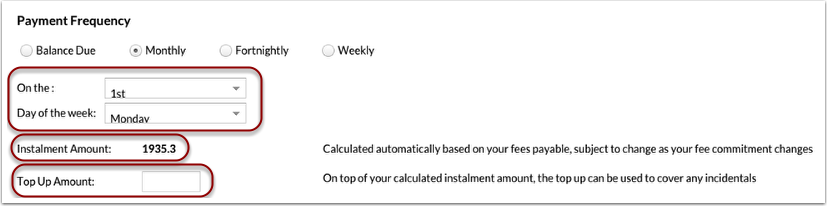
- The ‘Optional Item Selections’ part of the screen provides the option of adding to the direct debit instalments a regular donation to the Building and/or Library fund(s). This can be deactivated by you at any time by deselecting the option ‘Add to Auto Payments’.
The ‘Agreed Amount’ can be changed by clicking on the dollar amount.
Click on ‘Save’ to upload the credit card/bank account.
