You can download the latest version of Microsoft Office from the Office365 portal.
CLICK HERE to go to their portal to begin. Then, click “Install” at the top right, and click “Office 365 Apps” to download the installer.
Run the installer once downloaded, and after installing, launch one of the products, such as Word, and activate it with your school email.
For more detailed instructions choose your device below:
-
- Select the Install button
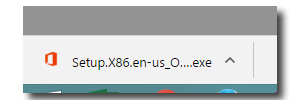
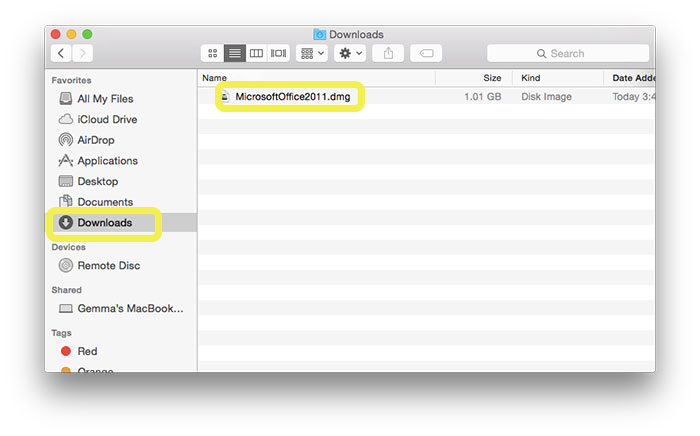
- A .exe (PC) or a .dmg (MAC) file will then download. Locate the downloaded file and run it by double clicking on it.
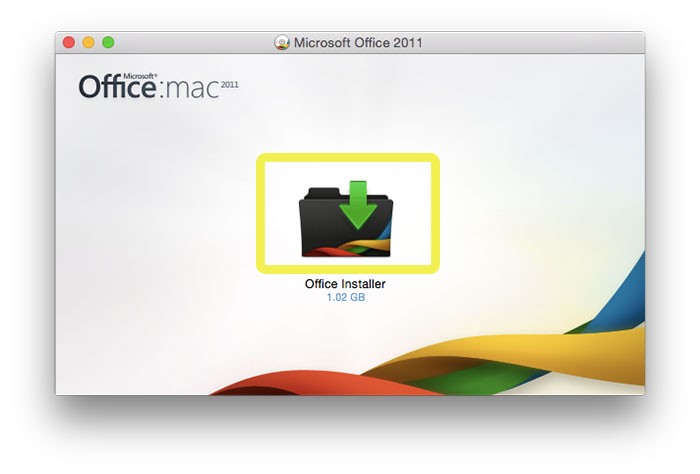
- An installer will open. Double click on the folder
- Follow the prompts until your installation is successful
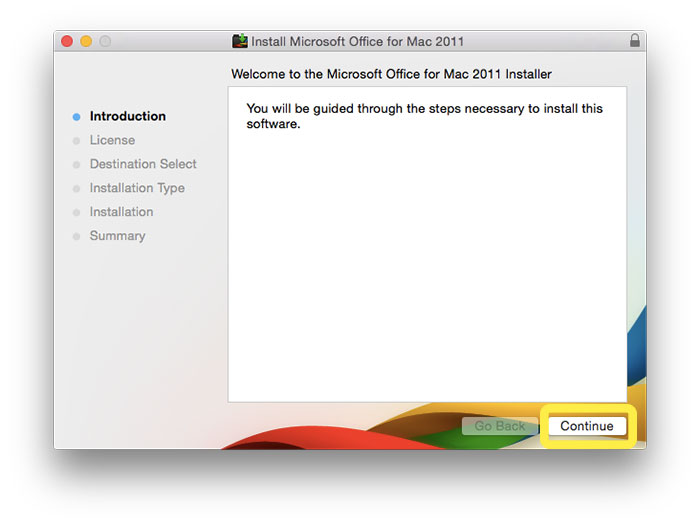
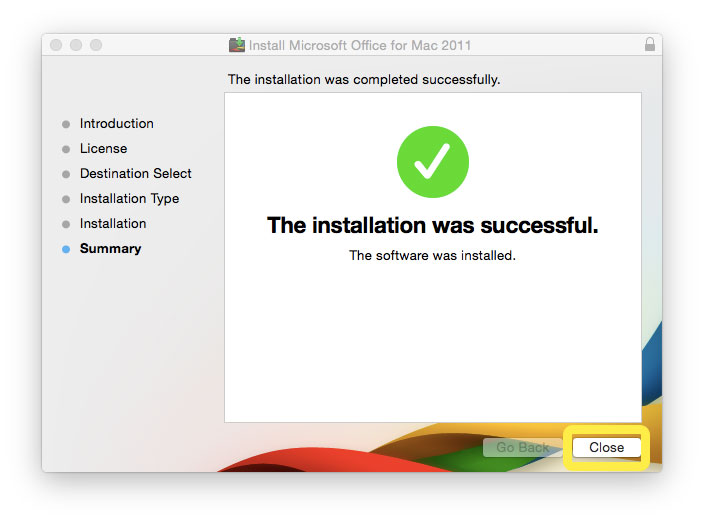
- Once the installation is completed, open Word. You will need to sign in the first time you open them. Sign in using your school email and password.
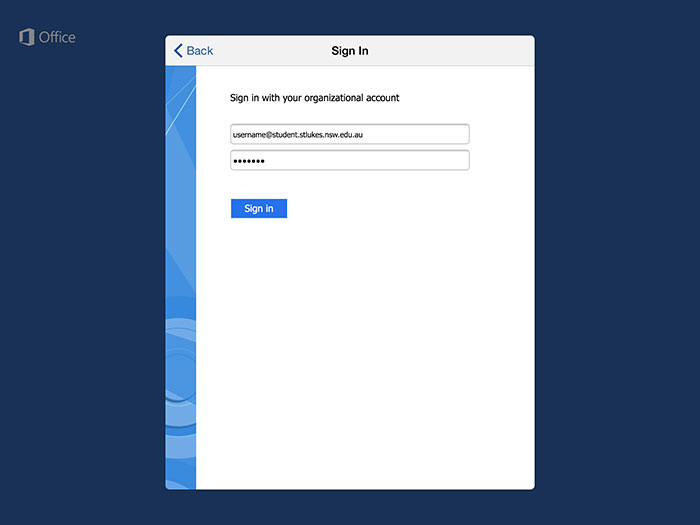
- Once signed in, your version of Office will be activated. Then, simply follow the prompts to learn about the new features of open Office (once it’s fully installed)
- NOTE: If you receive an error when you sign in, make sure that your Time/Date is in sync, and that your computer is set to the correct time zone.To do this:
- Right-click the clock at the bottom right of the screen, and click “Adjust Date and Time”, and check that everything is correct:
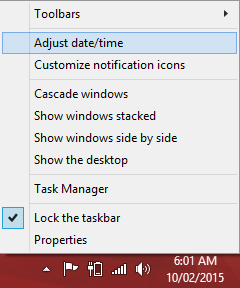
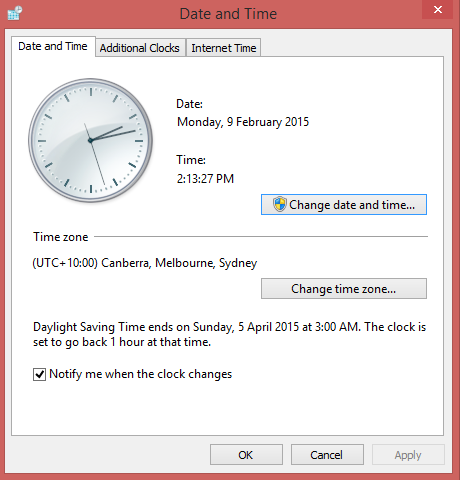
- Right-click the clock at the bottom right of the screen, and click “Adjust Date and Time”, and check that everything is correct:
- Select the Install button
- Locate the Word App in the App Store. Get the App
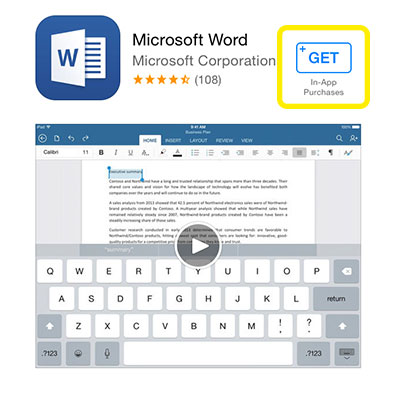
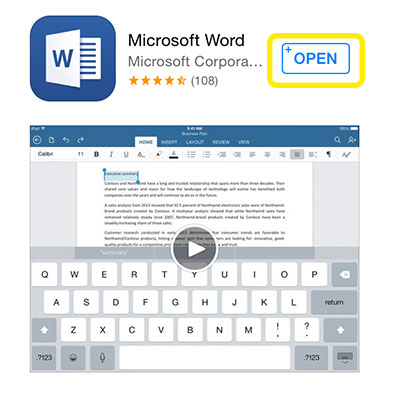
- Select Open once the App has downloaded
- Select Sign In
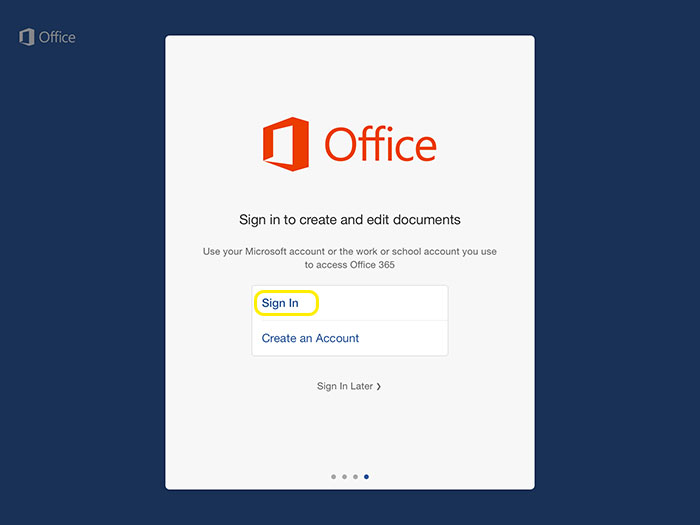
- Enter your school email address
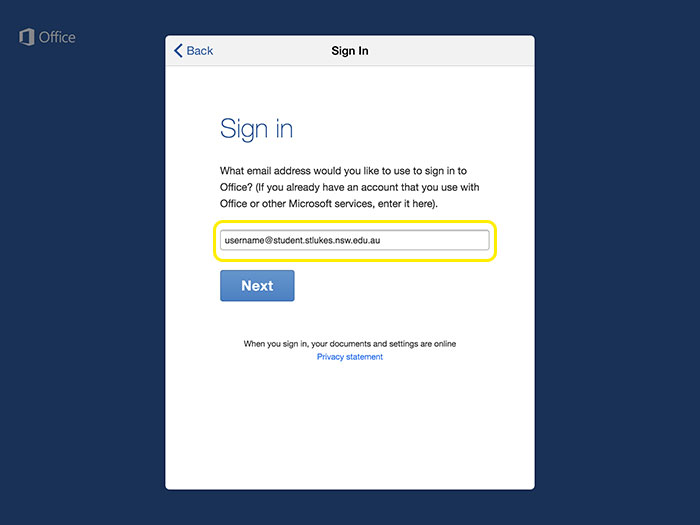
- Enter your school email and password
- Your Word will now complete installation.
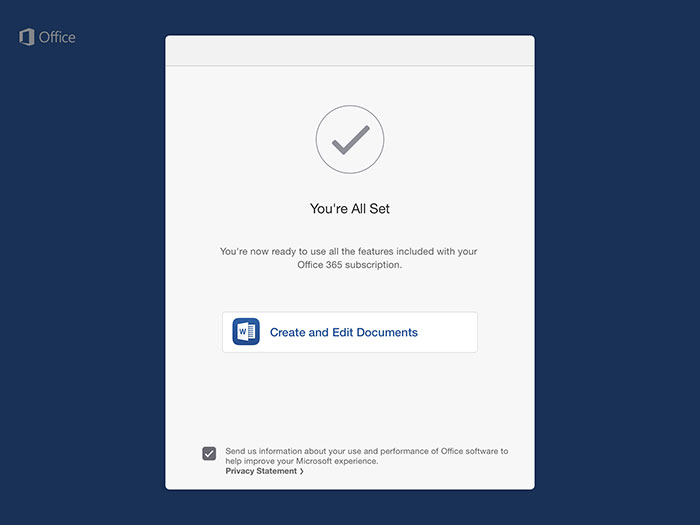
- You will need to follow this procedure for each Office 365 product you wish to download onto your iPad.