To make mind maps with the popplet app
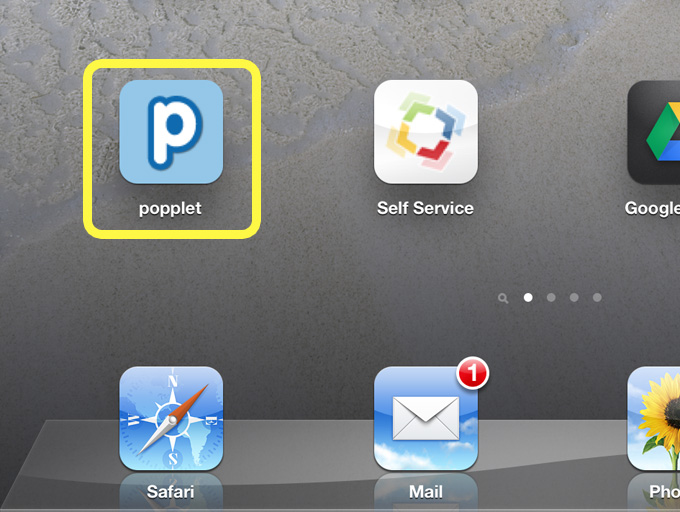
- Open the popplet app
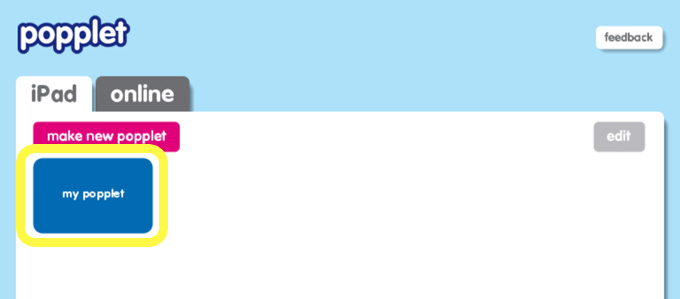
- First time users select ‘my popplet’ as you will be given brief instructions in the first popple
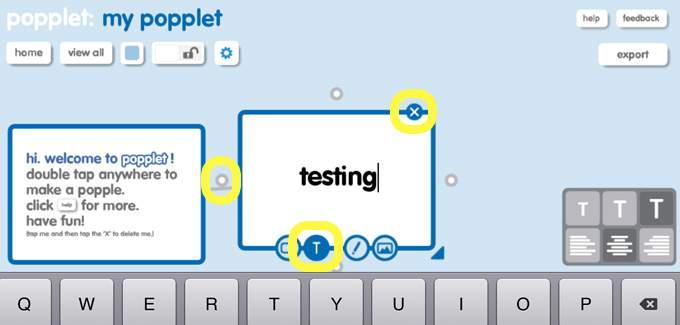
- You can double click anywhere to create a new popple or click on a grey circle of an existing popple to create a new linked popple. Select the cross to delete any popple. Select the T to add text – you can change the size of the text and the layout.
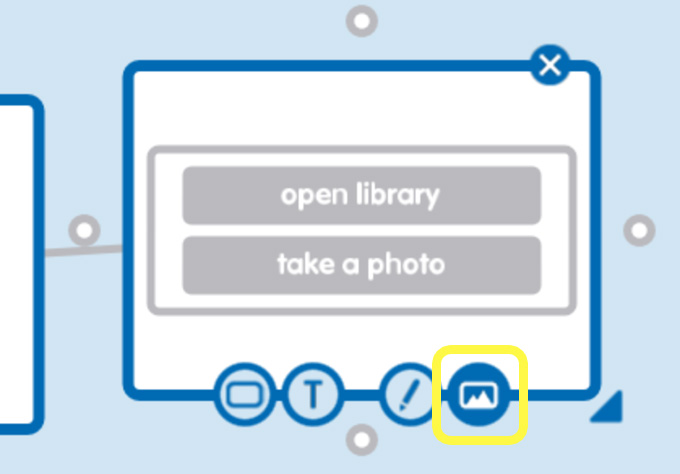
- Select the camera icon to insert a photo
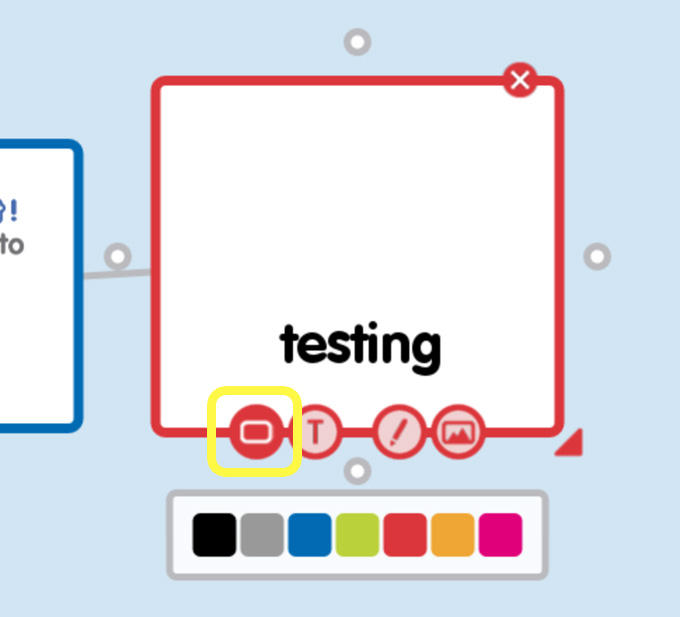
- Select the popple icon to change its colour
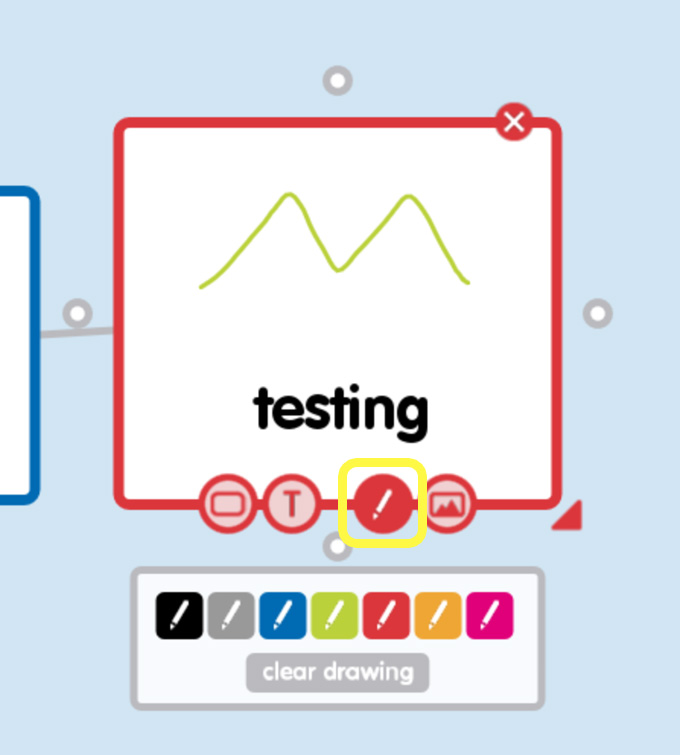
- Select the pencil icon to add a drawing
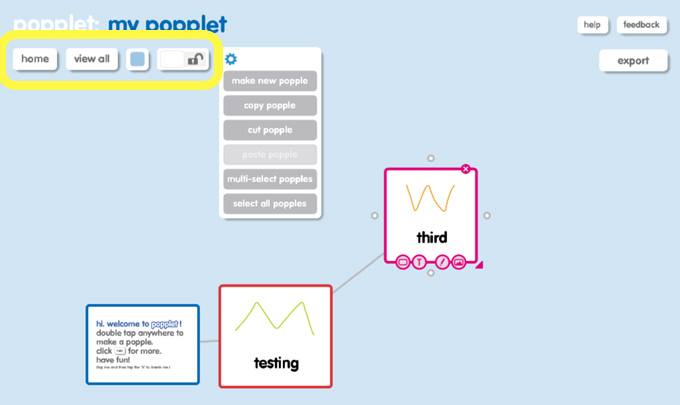
- Click on the popplet name to change it. Selecting ‘view all’ shrinks the popplet to a size where you can view all the popples on the screen at once. You can change the background colour and also lock the popplet to avoid accidentally editing it while viewing it. Selecting the settings gear displays a drop down menu with other useful options.
- Select export to email the popplet as a pdf or jpeg or to save it as a jpeg to the photo library on your iPad.
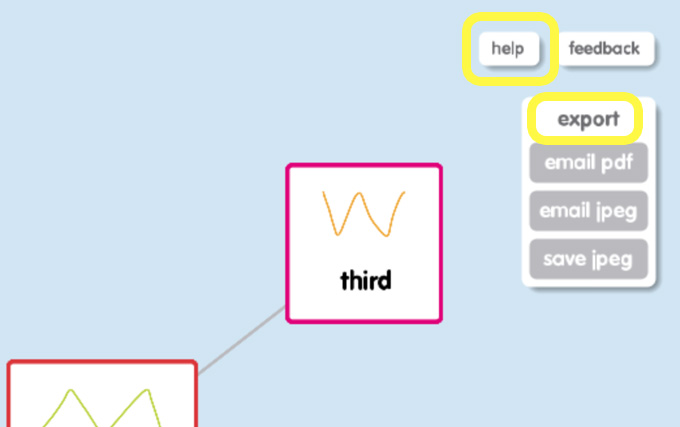
- The help button opens up a popplet with handy hints and FAQs.