Using Google Drive
Students and staff should access Google Drive via the SLIK My School Apps page. If requested, log in with your school username and password.
Create either a GoogleDocs Document, Spreadsheet or Presentation
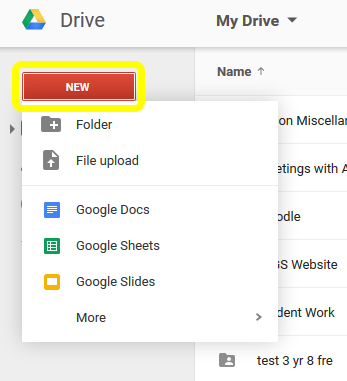
- Select NEW. From here you can create Google Docs, Google Sheets, Google Slides or more. You can also create a folder and upload a file.
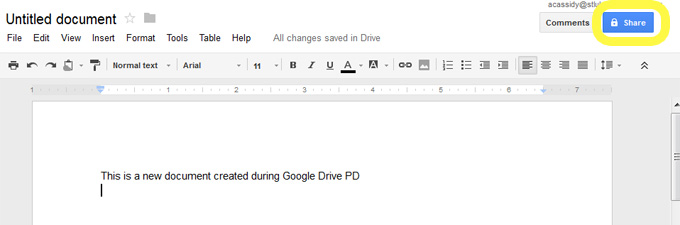
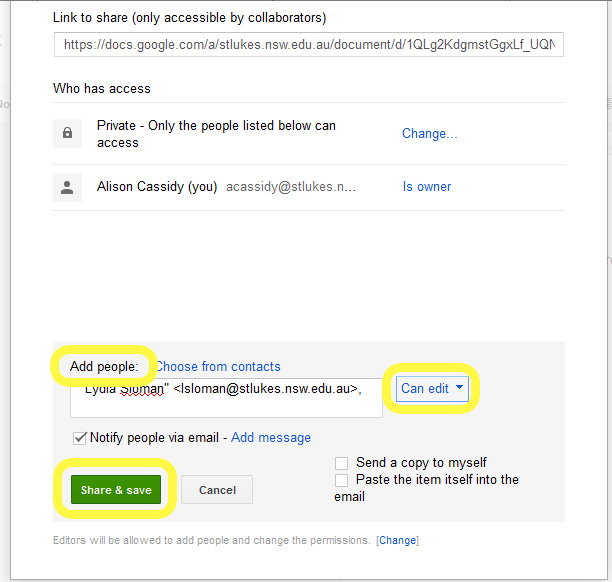
- When you have finished creating your document select Share
- The following screen will appear. Add a colleague to share your document with. Make sure that Can edit is ticked, then select Share & save
- To create a new folder select NEW then the folder icon
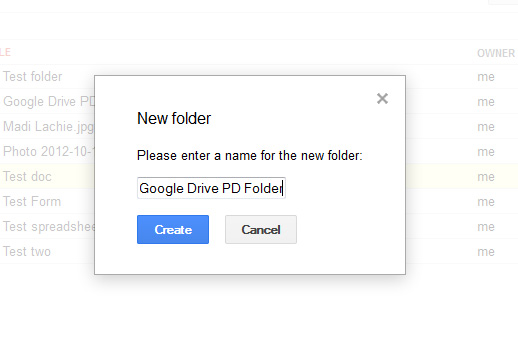
- Name the folder and select Create
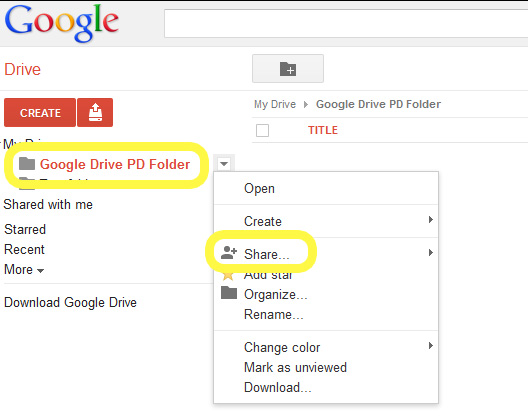
- Your new folder will be listed under My Drive. If you right click on the folder name a drop down menu will appear. To share a folder with a colleague select Share.
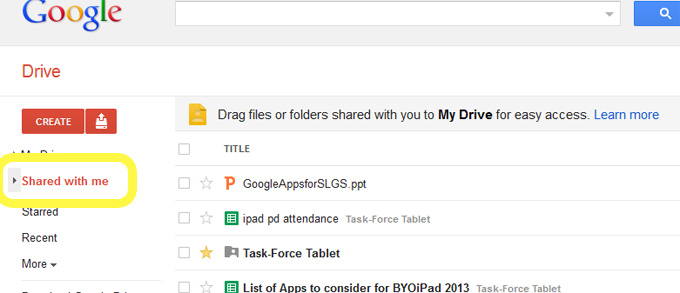
- To edit a document that has been shared with you by a colleague, select the Shared with me drive, then click on a document. If the author has given you editing rights you will be able to edit the document.
- To upload a file or folder select NEW then the File upload icon
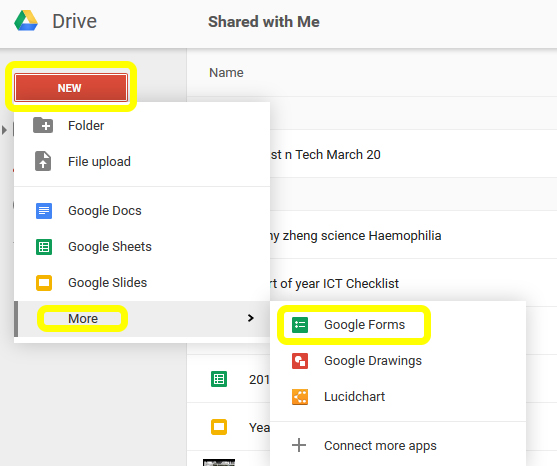
- To create a Google Form, select NEW, then More then choose Google Forms.