The following instructions will aid both students and staff when integrating an assessment using Google Sites into Canvas.
To allow your teachers to mark your Google Site in CANVAS you will need to set up your Google Site with these specific sharing settings.
- Create your site and set your sharing settings so that when Published – Anyone can find and view.

- Then under Publish settings
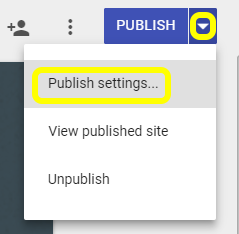
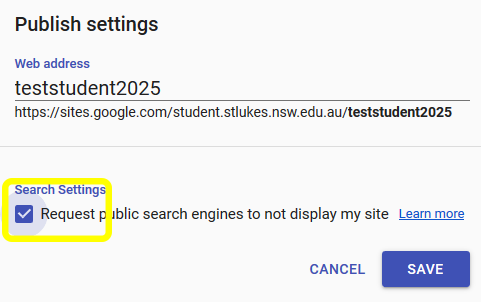
tick the Search Settings box as shown below:
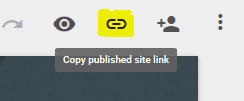
- When you are ready to upload your assessment into Canvas, copy the “published site link” using the icon shown below:
- Go into the assignment and select SpeedGrader. You will see a snapshot of the site as shown below. This snapshot is of the site at the time the assignment was submitted. You can scroll down and see the content on the page but if there are any links these will not work.
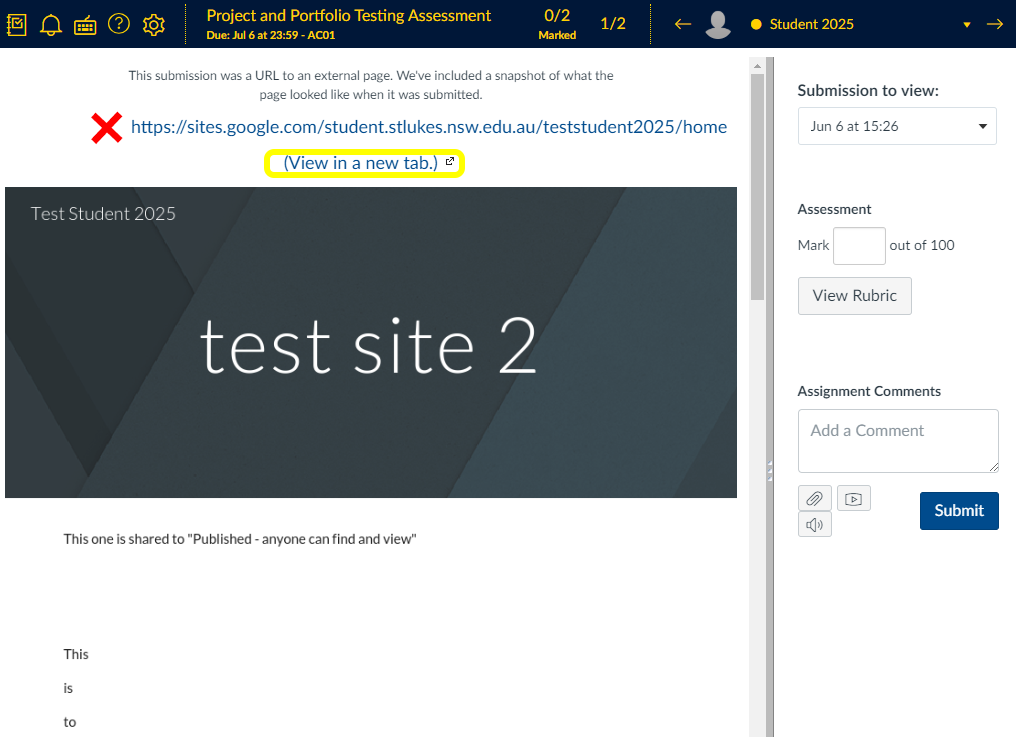
- You can select (View in a new tab) to look fully at the working site.

DO NOT CLICK ON THE URL LINK:
If you click on the link that is listed near the top of the page, eg:

this will take the snapshot away and you will only see a blank page within the SpeedGrader screen.
This link does not work as Google does not allow iframes to open in CANVAS. This is a google security issue.