This article was submitted by Mr. David Badlan.
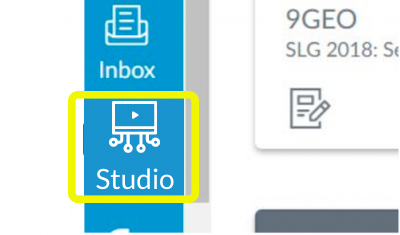
- Access Studio icon (it’s on the left hand tool bar of the CANVAS homepage)
- In the TOP right hand corner there is an ADD button; click on that to get the screen below:
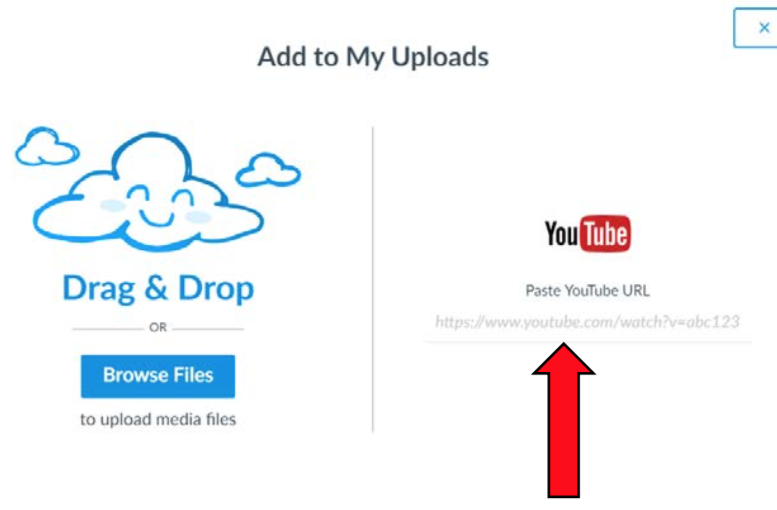
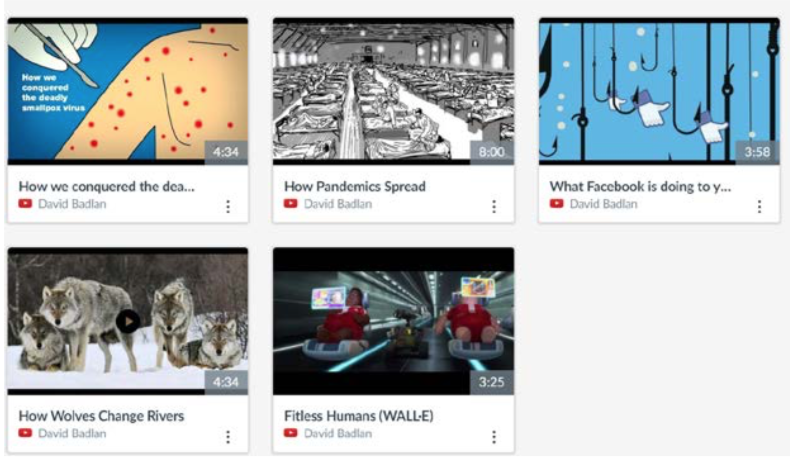
- Copy and paste the your Youtube URL into the box (see above). This will then upload to your Studio Media file. It will look something like the image below:
- Hit the PLAY button on the clip and PAUSE it when you wish to make a comment/add a question.
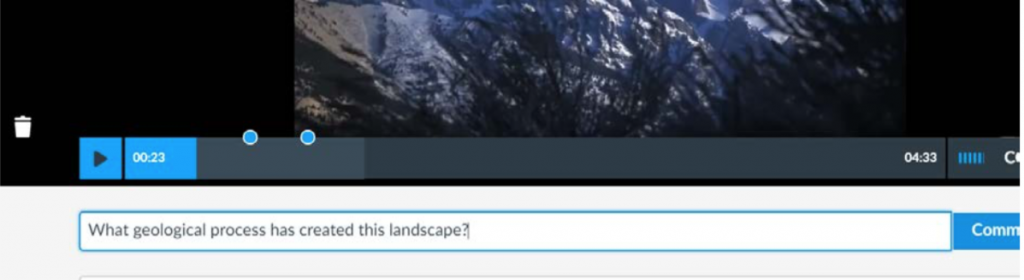 MAKE SURE you hit the COMMENT button to save your comment: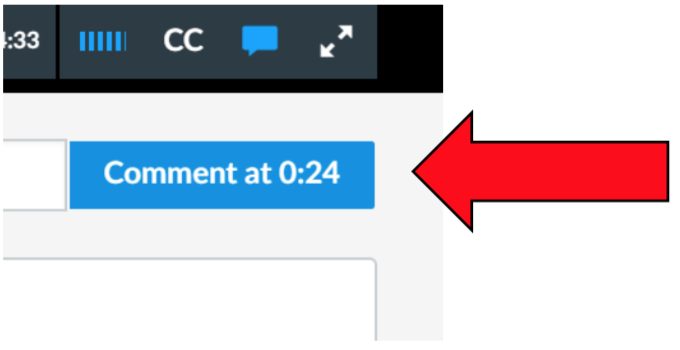
- Continue to PAUSE and COMMENT as the clip plays. Your comments will build up as you go. YOU will see this as you progress.
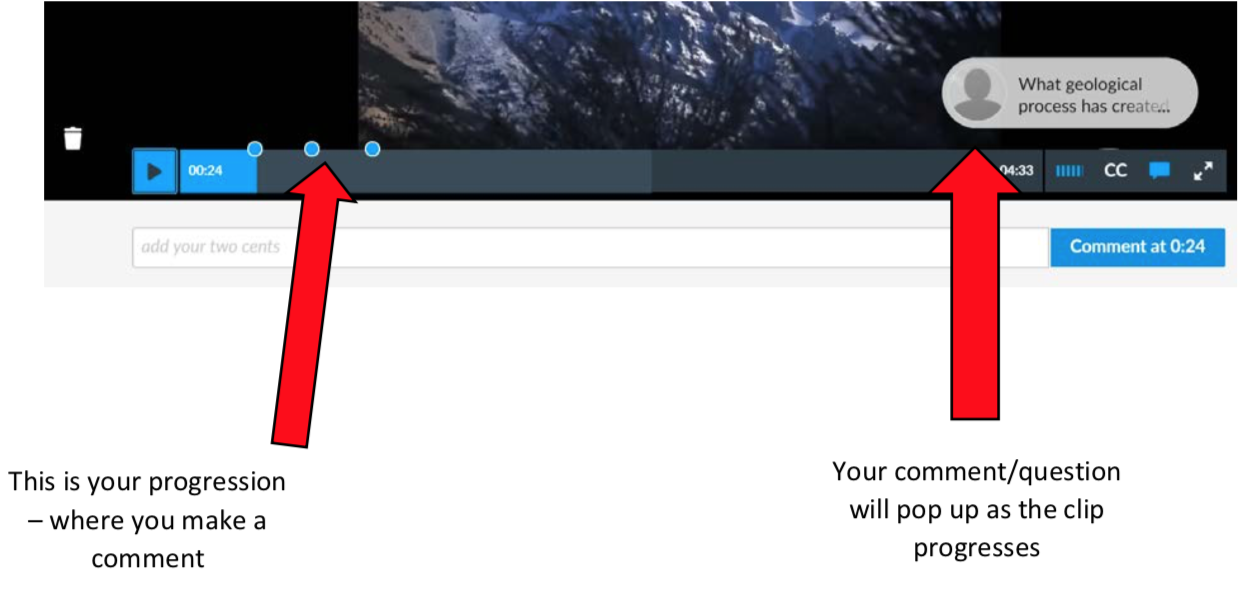
- When you have finished making your comments/questions you will need to upload to your activity. To do this, access your class/topic/module and click the ADD button (see below)
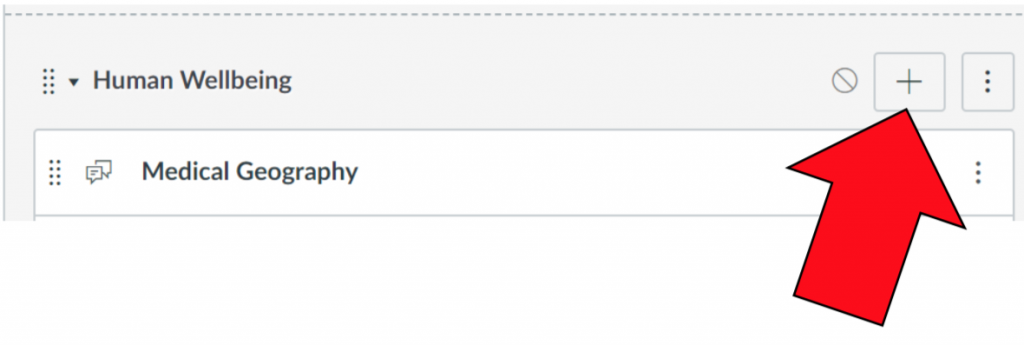
- This will allow you to create a new learning activity, in this case a DISCUSSION has been set up.
- Click on New Topic and give your activity a title.
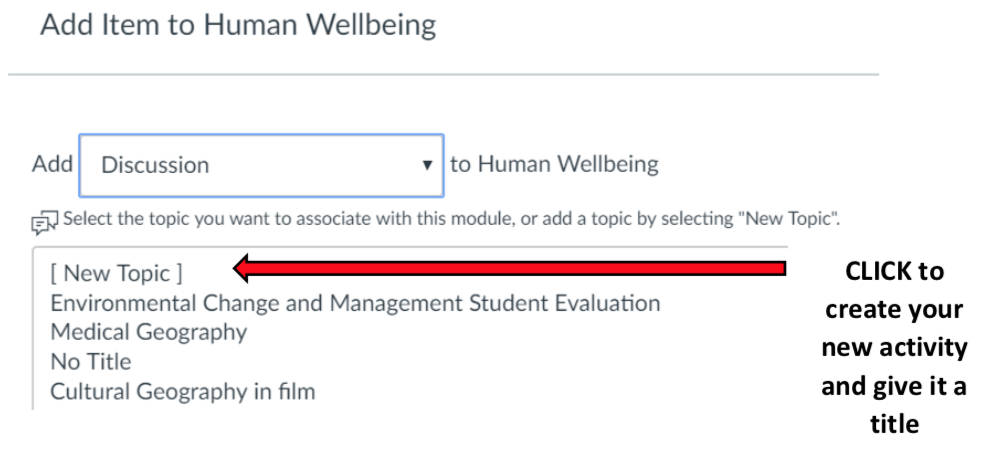
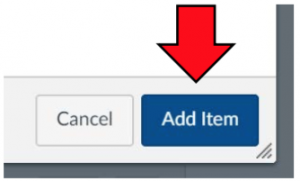
- When you have done this click the ADD ITEM button (Bottom right hand corner)
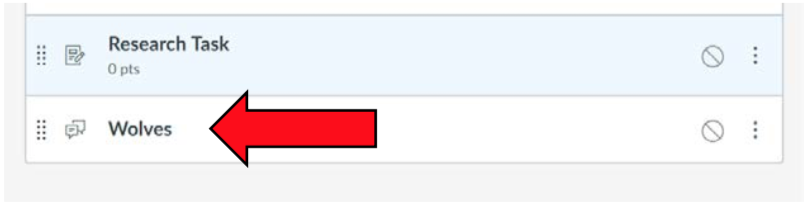
- Your new activity will be added to your Module, you will then have to access your new activity in the Module by clicking on it (in this case it’s called Wolves)
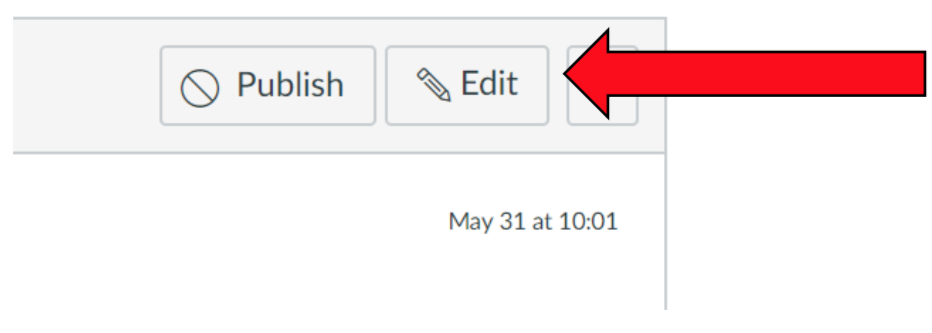
- CLICK on your new activity, you will need to EDIT the activity to be able to import your file:
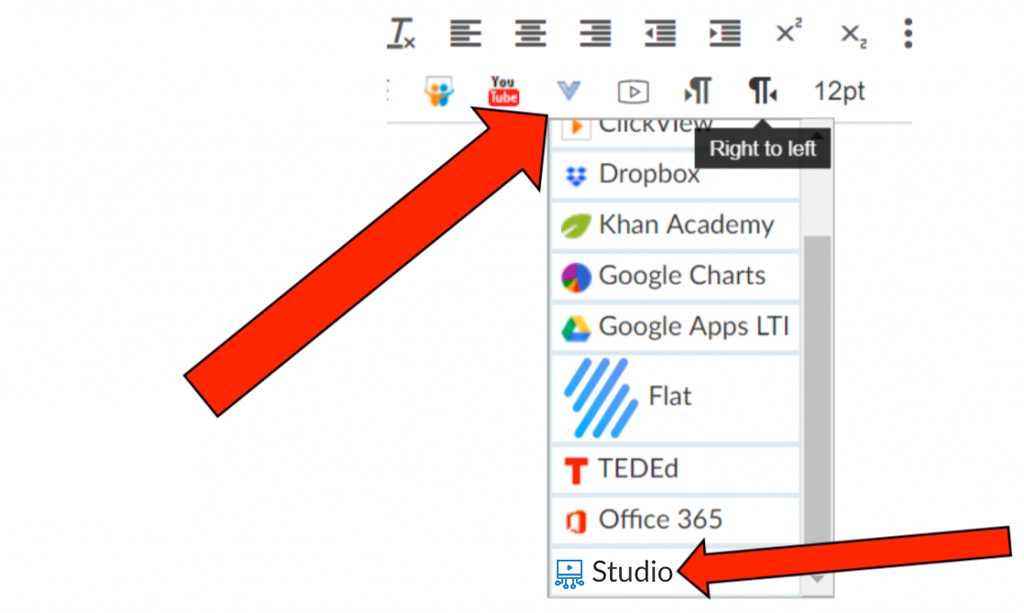
- At this point look for an INVERTED BLUE ARROW next to the YOUTUBE icon (see below).
- Click on this and the drop down box of a variety of different media will appear. Click on the Studio icon
- You will be taken to a screen that has your uploaded files in it. Hover over the clip you wish to use, it will highlight BLUE with a large tick and simply “Choose File”. This will add the activity to your discussion.
- REMEMBER to scroll down after the file has uploaded to your discussion and save and/or publish the activity.
Your students will now be able to watch the clip and respond as they progress through the clip at their own pace and add to the discussion in an interactive and engaging discussion without you having to stop/start the clip at different points!