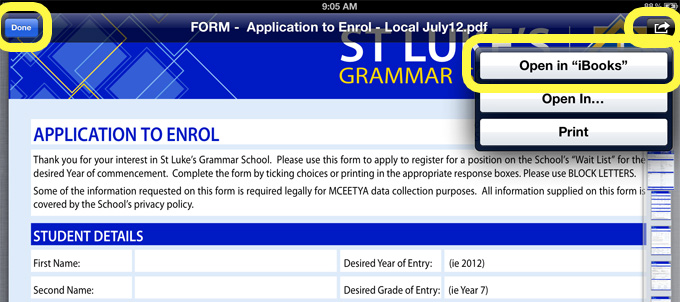
To save a PDF to iBooks on your iPad
1. A PDF on a website
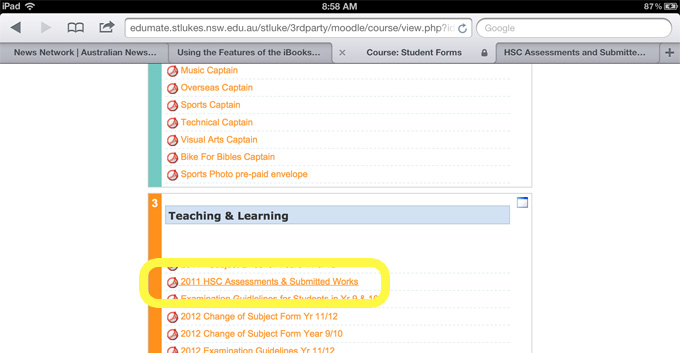
- In Safari, select the link of the pdf you wish to save to iBooks
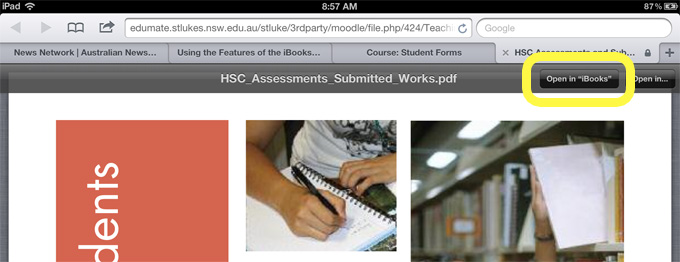
- The pdf will open in safari. Select the Open in “iBooks” button.
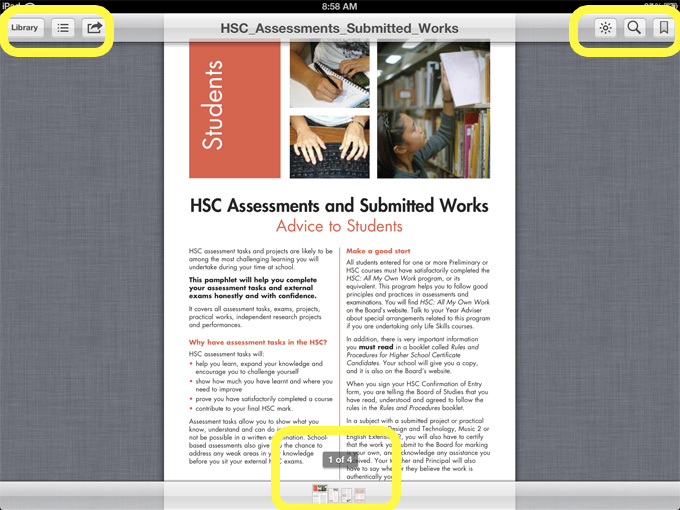
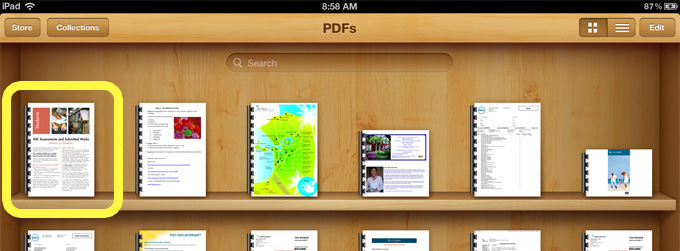
- The pdf will open in iBooks. The buttons on the right allow you to change the screen brightness, search for a word or page number and add a bookmark. The options on the left allow you to return to your pdf library, view all the pages in the pdf at once and email/print the pdf. At the bottom of the screen you can see how many pages are in the pdf and which page you are currently viewing.
- Selecting Resume takes you from the multi page view back to the page you were on.
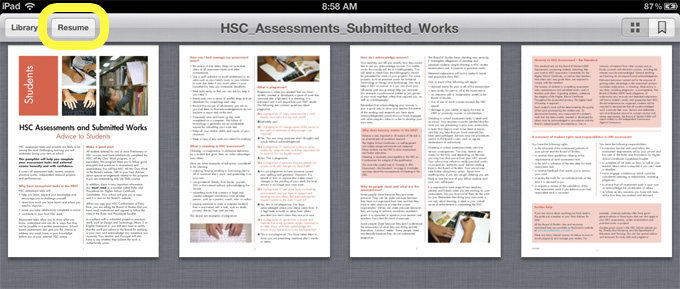
- Selecting Library will take you to your library of pdfs.
2. A PDF in an email
- If you want to save a pdf you are sent in an email, press and hold down on the pdf, then select Open in “iBooks”
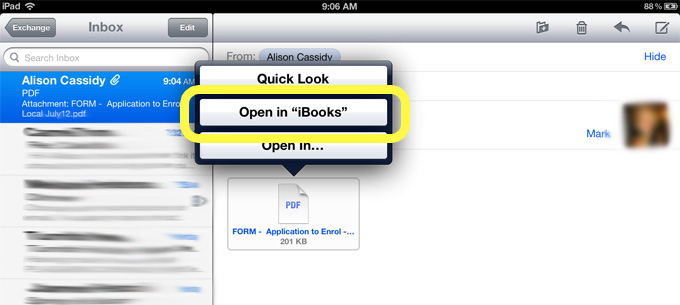
- If you want to view it before opening it in iBooks, tap the pdf quickly then select Done to go back to your email or Open in iBooks