Teachers: Follow these instructions to unblock a website or a list of websites that you want your students to be able to access for a particular lesson.
Students: Follow these instructions to view websites (that are usually blocked) during a particular lesson as requested by your teacher.
- Go to http://lesson.localnetwork.zone or use the Cyberhound icon from the SLIK My School Apps page.
- Create a new lesson. You will see that your lesson is given a 4 letter code (shown below in red box)
- Add URLs
- Choose the length of time you would like the URLs unblocked
- If you wish, you can choose to have ALL other websites blocked while your students are using the prescribed list of websites. You can also tick “Require confirmation” – which will then require you to confirm when a student is trying to access the lesson using the code. However, you are free to leave both of these options unticked.
- Select Start lesson. Note: You can do this as many times as needed.
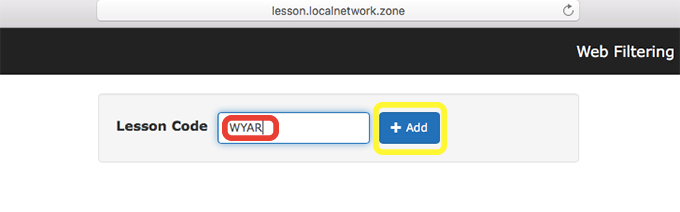
- Direct your students to http://lesson.localnetwork.zone (or they can also use the Cyberhound icon from the App launcher) and provide them with the 4 letter code.

- Go to http://lesson.localnetwork.zone or use the Cyberhound icon from the SLIK My School Apps page.
- Enter the 4 letter code provided to you by your teacher
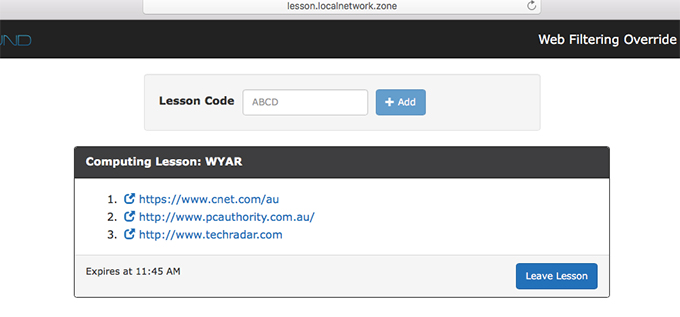
- A list of websites will appear for you to access.