Teachers: Follow these instructions to create an assignment in Canvas to which students can submit their work and have it processed through Turnitin. The Turnitin class is automatically created with the students enrolled in your particular Canvas course.
Students: Follow these instructions on how to submit an assignment into Turnitin via Canvas.
-
-
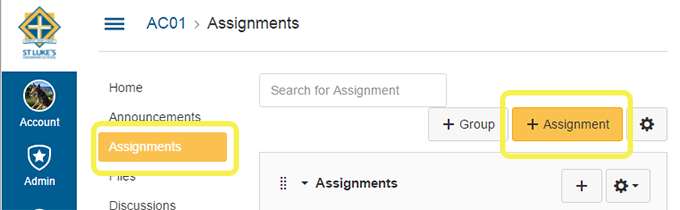
- Select the Assignments tab of your course and then the Add Assignment button
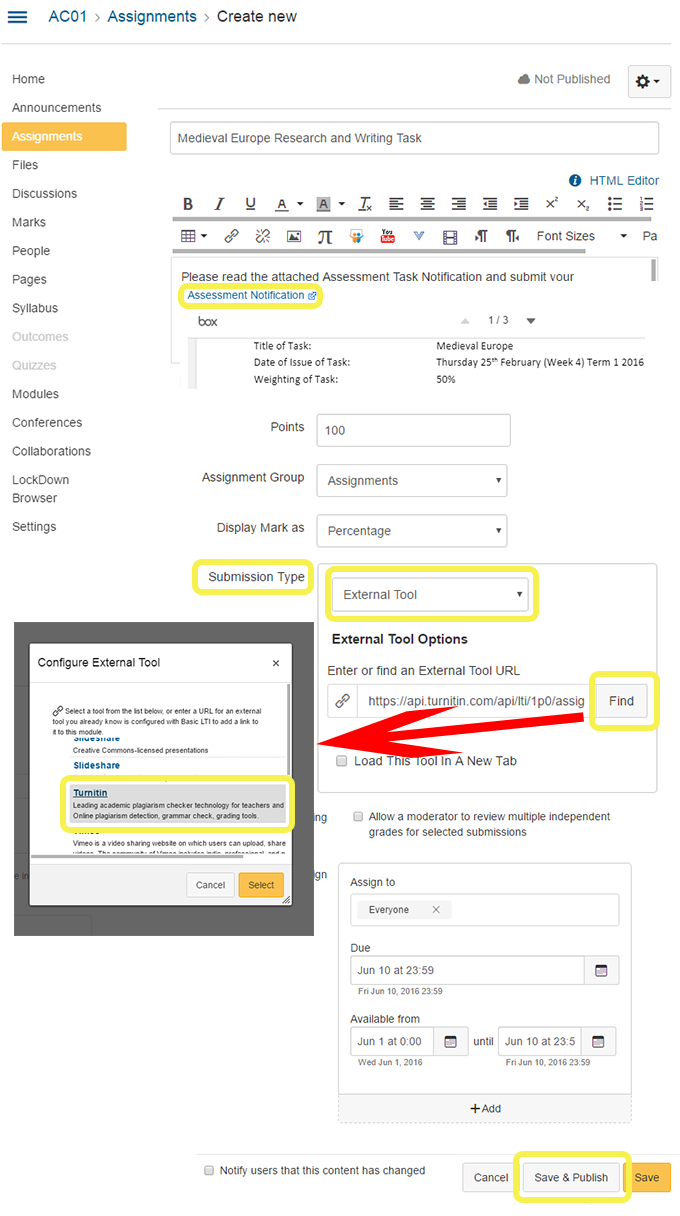
- Here you can enter a title and description and upload the Assessment Notification, assign points and choose how you want to display the marks. Under Submission Type, choose External Tool then click the Find button. Scroll down in the pop-up box and select Turnitin, then Select. You can then set due dates etc. Save & Publish
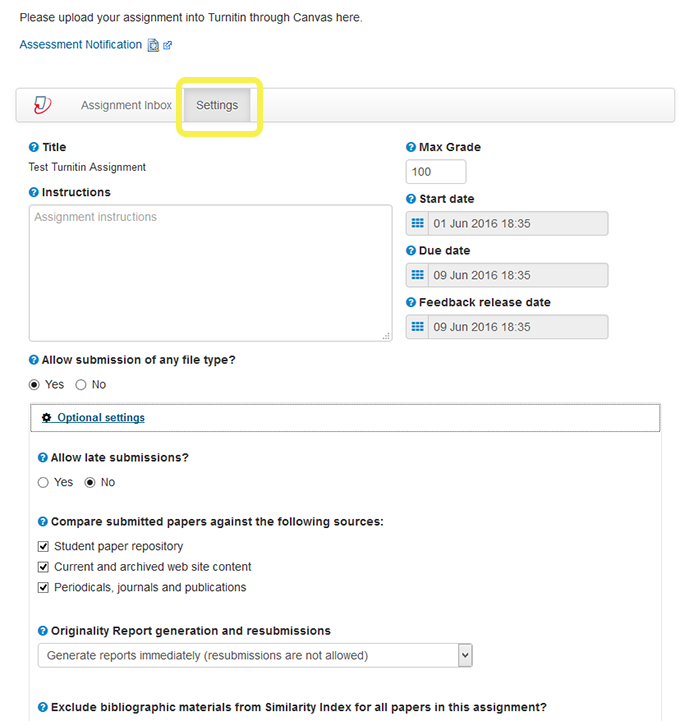
- This will bring you to the final steps of creating an assignment. You can edit your Turnitin settings by selecting the Settings tab. You can also attach or create a Rubric under this tab. Make any adjustments then press Submit
- When you select the Assignments tab you will see the newly created assignment on the page
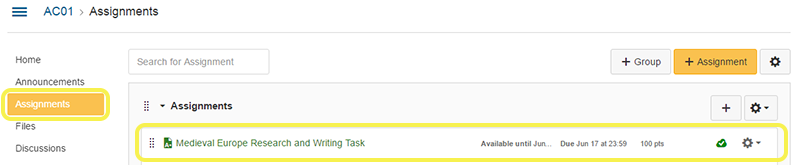
- Select the Assignments tab of your course and then the Add Assignment button
-
To view/mark student assignments
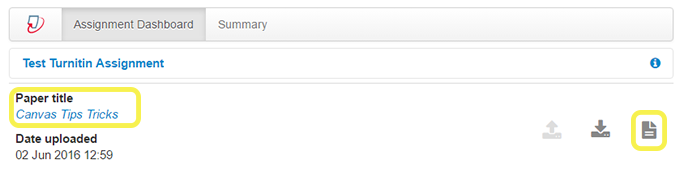
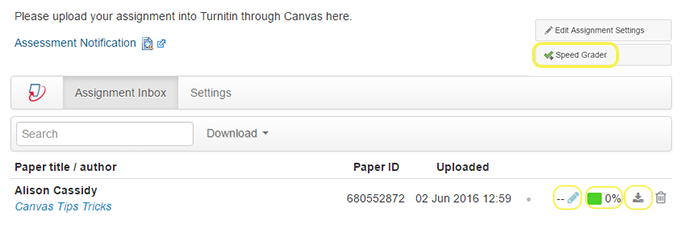
- You can view and mark assignments using the SpeedGrader tool or by selecting the Grade icon. This opens the Turnitin Grader. You can see here the Similarity % and you can also Download the assignment.
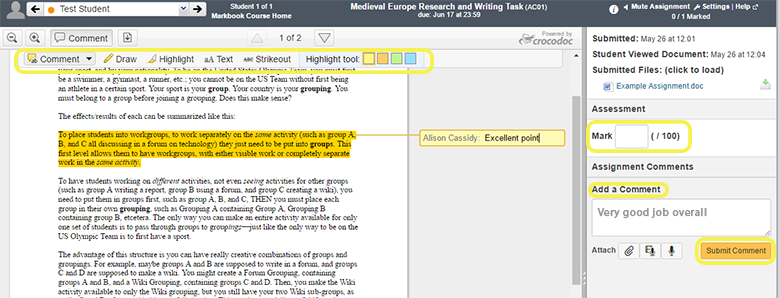
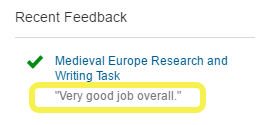
- Canvas Speed Grader: You can assign a mark and add comments both directly into the document and as a submitted comment that students will then see on their Canvas course
- Select the Assignments tab on the left and then select the applicable assignment
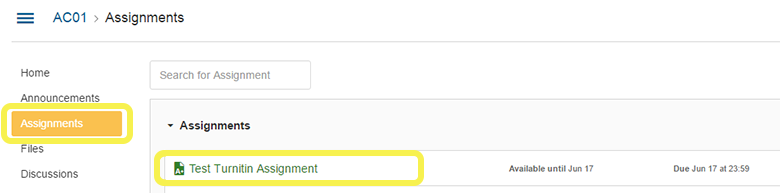
- Upload your assignment via the Upload button

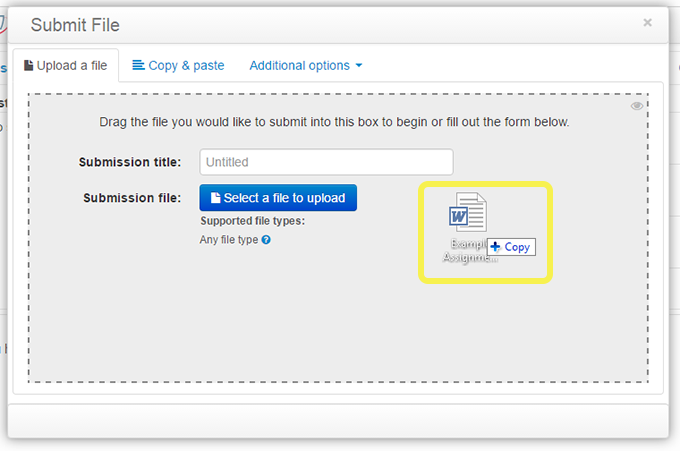
- In the Upload a File tab you can either drag and drop your assignment or browse for it using the Select a file to upload button.
- You will then see the following screen showing that you have successfully submitted your assignment. You can download a pdf receipt from Turnitin using the button below.