Follow these instructions to easily mark your roll – including during Pastoral Care
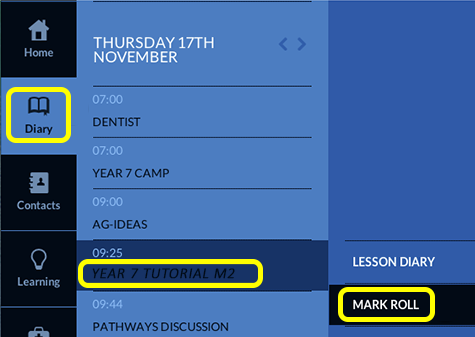
- The easiest way for teachers to access the mark roll screen is through the Diary option on the left hand vertical menu. From Diary, simply select the lesson/pastoral care period and then the Mark Roll option.
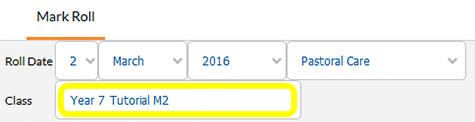
- Once on the Mark Roll screen, make sure that the correct Roll Date & Class are showing.
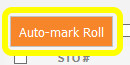
- Select the Auto-mark Roll button.
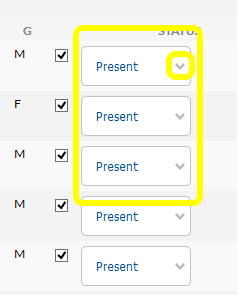
- This marks all students as Present. Adjust any absent students by selecting the drop down arrow.
- Check the Mark this roll as having been completed box.

- You must press the Complete Roll button to confirm the attendance.
If you are covering a class or marking the roll for another teacher please follow these steps:
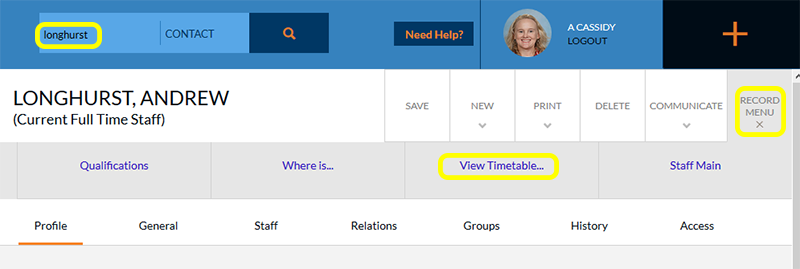
- Search for the teacher under the top CONTACT search bar. Once on their record, choose Record Menu, then View Timetable…
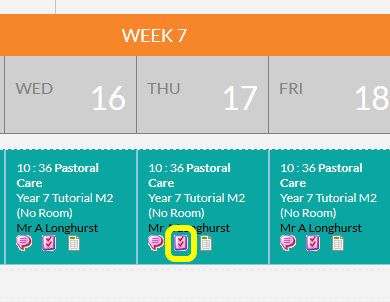
- On the timetable screen, select the Mark Roll icon on the period you wish to mark the roll for.
- Proceed to steps 3 to 6 as above.
TAGS:edumate