The iBooks app has many useful features. Some of these are outlined below. For a more detailed set of instructions access the Apple help on iBooks here.
To select text
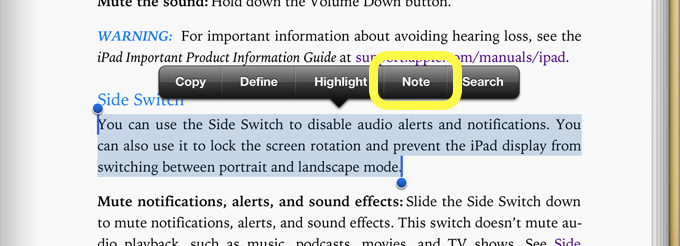
- Press and hold down on a part of the text you wish to select
- You can then change the size of the selection by moving the blue circles at either end
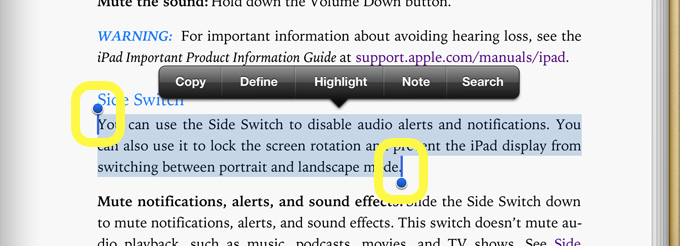
- A list of options will display
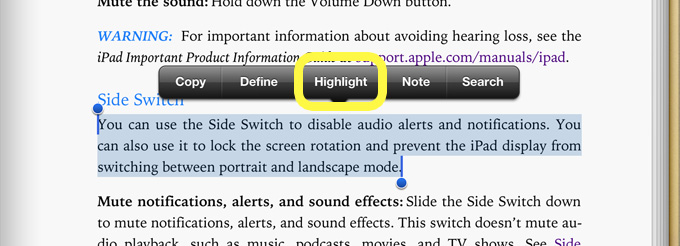
To highlight text
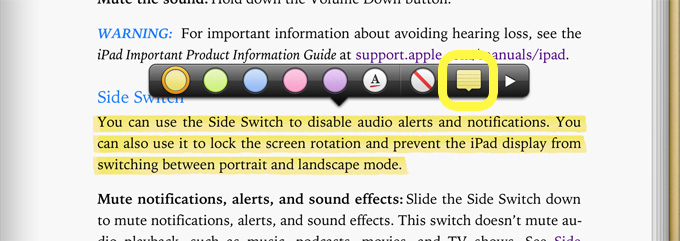
- Choose Highlight
- Choose your desired colour. If you change your mind press the white circle with the red line through it and the selection will disappear.
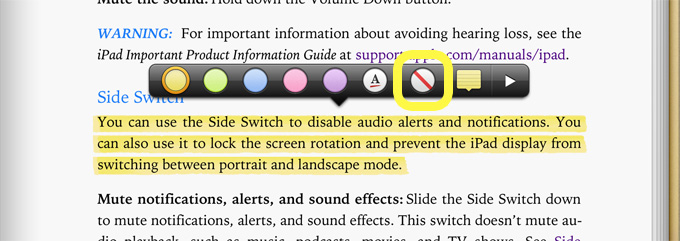
- Tap anywhere else on the page to close the highlight tool
To insert a note
- Choose Note
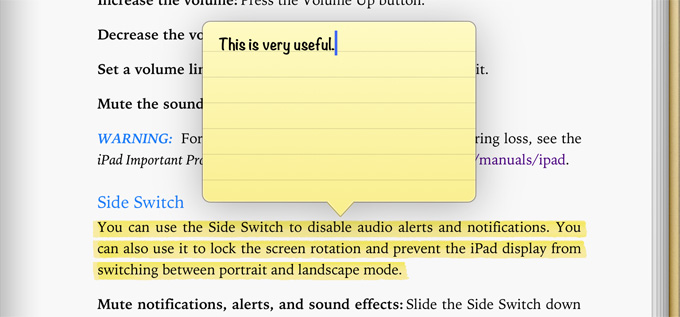
- Type your note then tap anywhere else on the page to close the note tool
- You can also open the note tool by selecting the note on the highlight tool bar
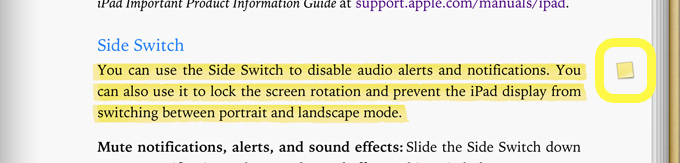
- To read a note, tap on the note icon in the margin
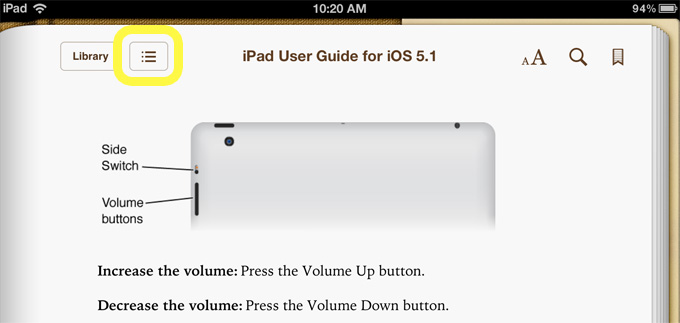
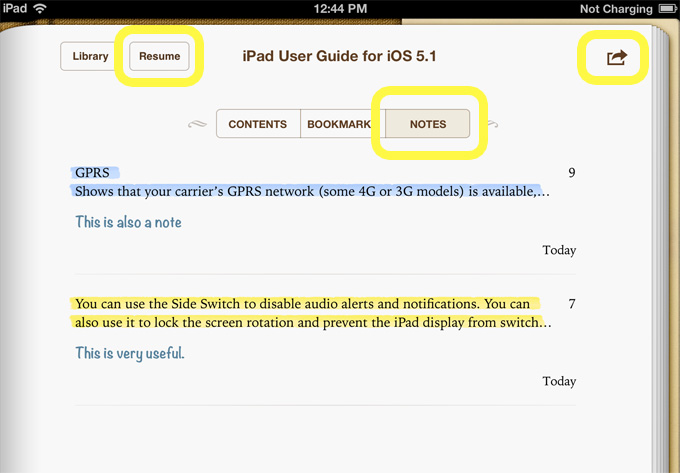
- You can also access all the notes made in a book by selecting the menu icon and selecting NOTES
- To edit or share a note press the options icon in the top right hand corner. To return to your book press the Resume button.
To define or look up a word or phrase
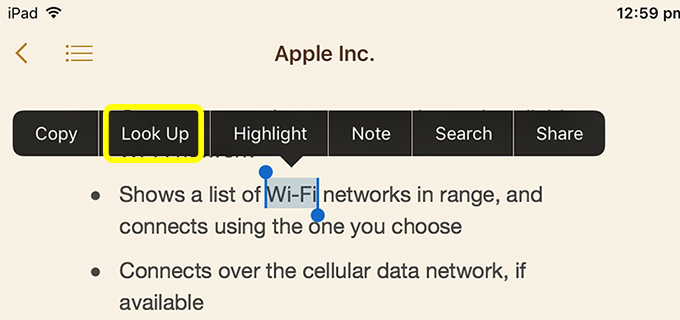
- Select the word you wish to define then choose Look Up
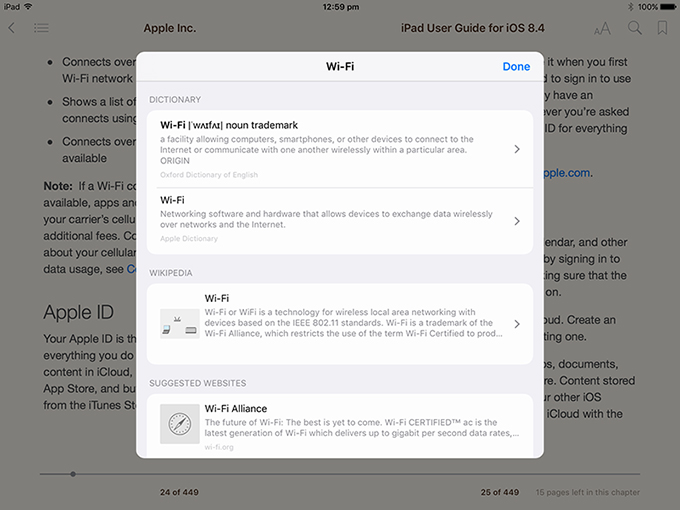
- The definition of the word will appear. To close the definition tap elsewhere on the screen.
To Search for a word, phrase or page number
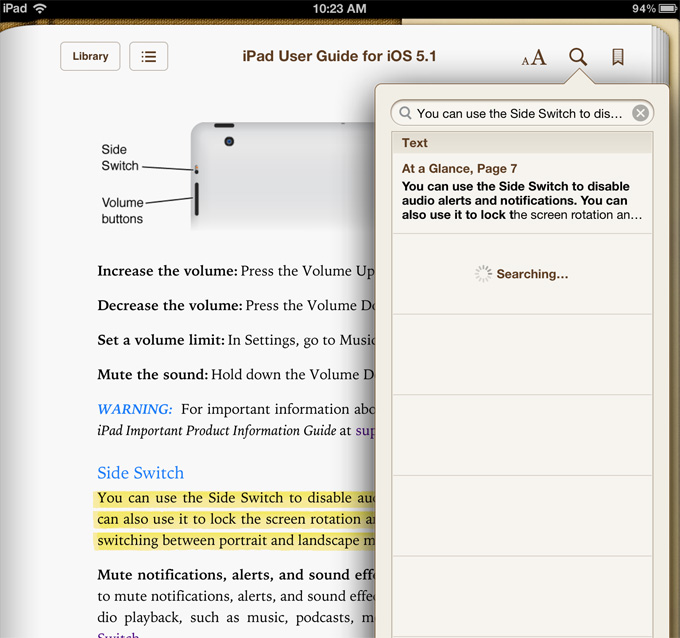
- You can search from a selection of text for other occurrences of that word or phrase. Select the text then choose Search.
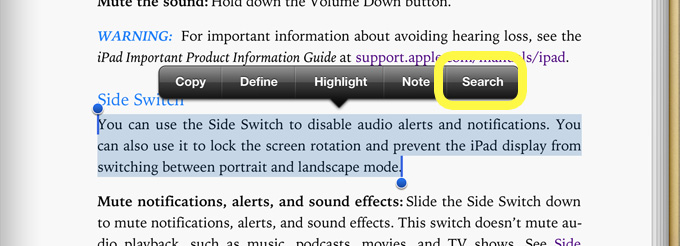
- A search box will open and it will display all instances of the selected word/words
- Alternatively, you can search for a particular word, phrase or page number without having any text selected. Press on the magnifying glass in the top right hand corner. Enter the search term in the search bar. All instances of the search term will be displayed.
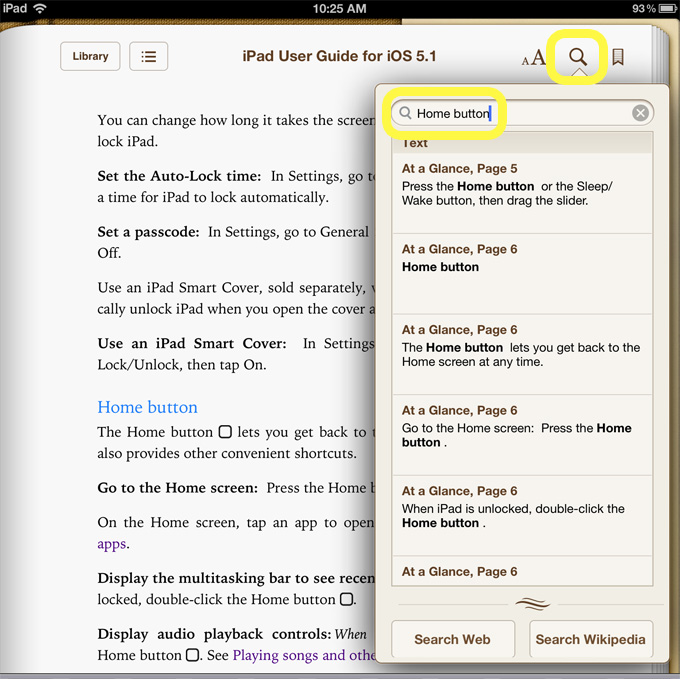
- Press any result to be taken directly to that instance. Press elsewhere on the screen to close the search box.
To copy parts of a book
- Select text then choose Copy
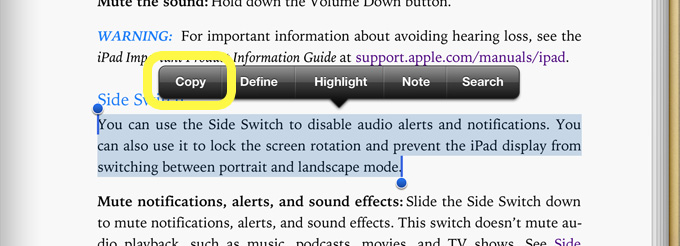
- You can then open another app such as mail. Press down where you want to insert the text and choose Paste.
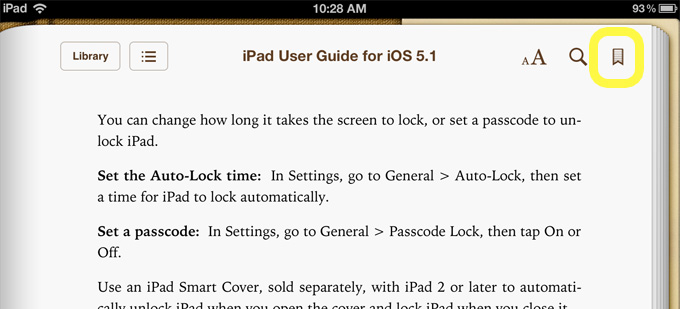
To insert a bookmark
- Tap the bookmark button to mark the current page
- A bookmark will be added
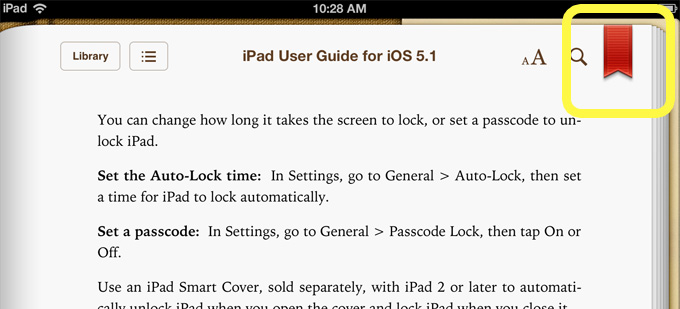
- To search for your bookmarks select the menu icon
- Select BOOKMARKS. To return to your bookmark tap the listing.
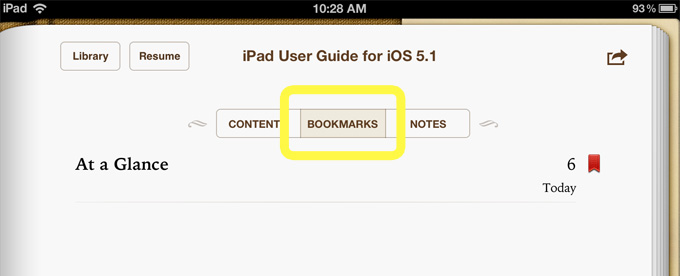
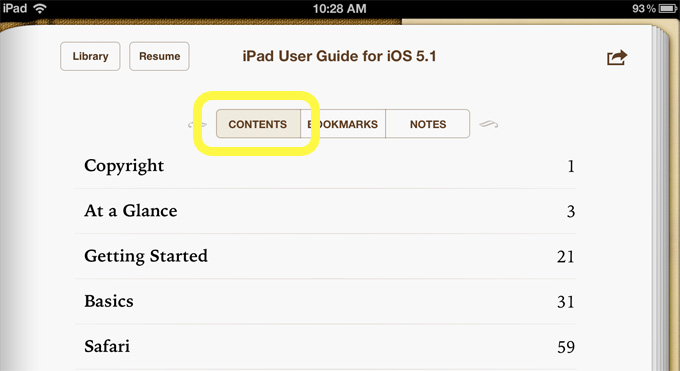
To view the contents page
- Select the menu icon and select CONTENTS
To adjust the display
- Select the font button to adjust the brightness of the screen, fonts & theme
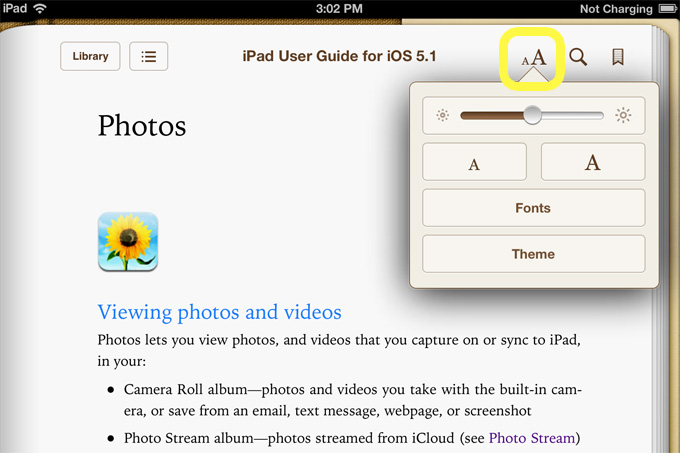
To return to your collection
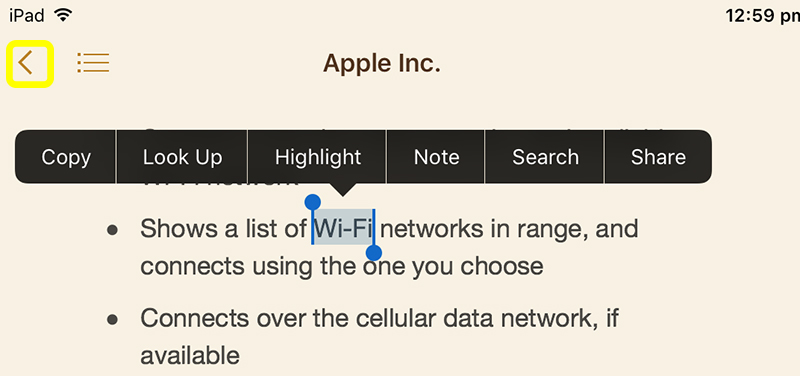
- To return to your collection of books from anywhere within a book select the left arrow