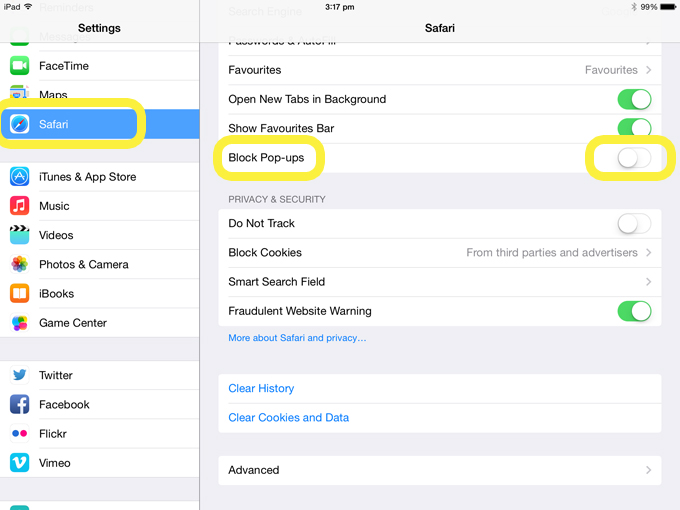
The use of some web applications requires you to disable pop-up blocking on your web browser. The following table shows how to do this on popular browsers.
Allowing pop-ups in Firefox
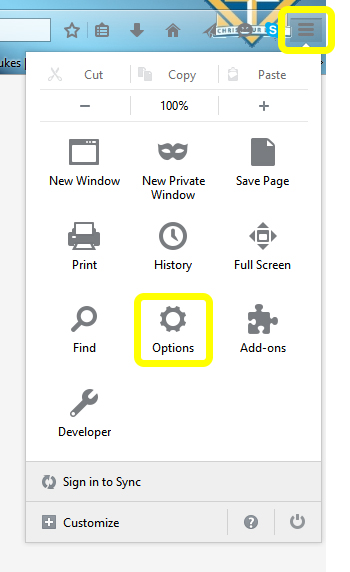
- Click on the Firefox menu tab on the top right. Select Options
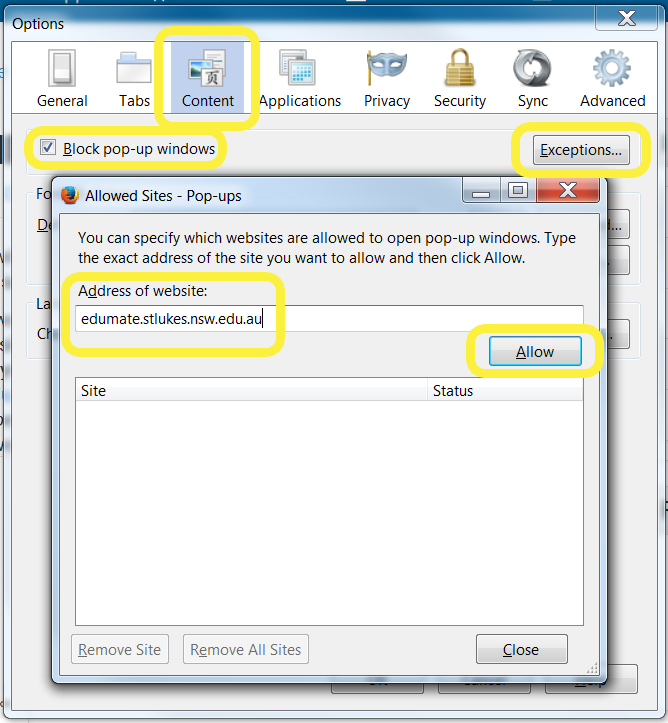
- Select the Content Tab. You will see a ticked check box called Block pop-up windows. Select the Exceptions… button to the right of this option. Enter the address of the site you wish to allow to open pop-ups, eg, edumate.stlukes.nsw.edu.au, then select Allow
Allowing Pop-ups in Google Chrome
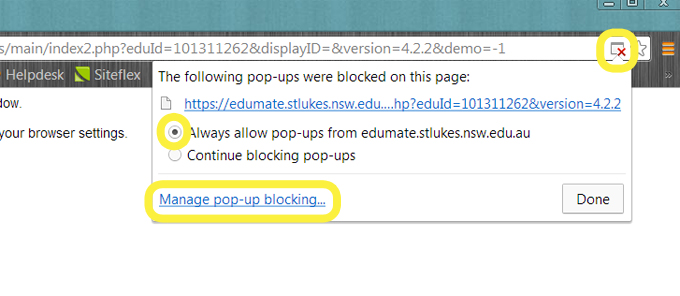
- If pop-ups have been blocked, you will see a red cross on the right hand side of the address bar. Click the icon to see a list of the blocked pop-ups. Click the link for the pop-up window that you would like to see. To always see pop-ups for the site, select “Always allow pop-ups from [site]”. The site will be added to the exceptions list.
- To manually allow pop-ups from a site, click the Chrome menu on the browser toolbar. Select Settings, then click Show advanced settings
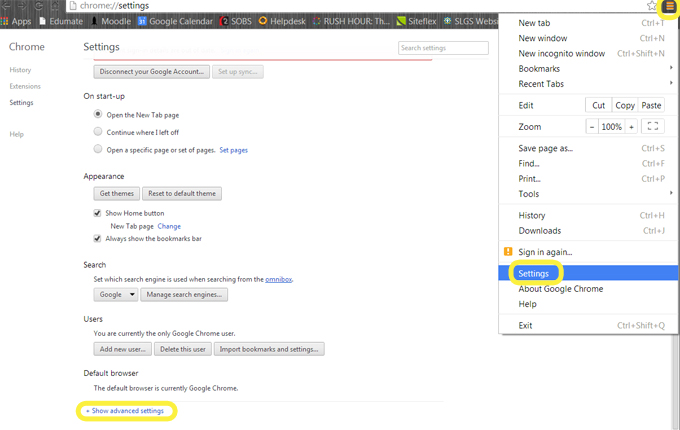
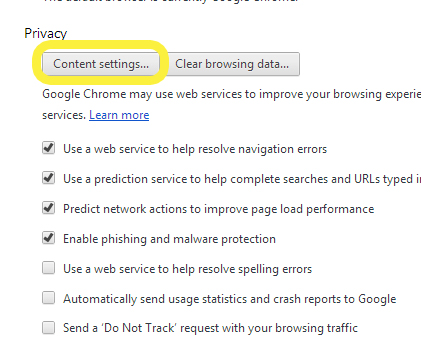
- In the Privacy section select Content settings…
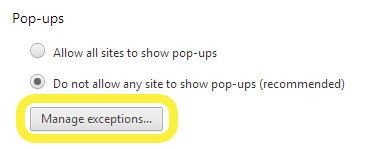
- In the Pop-ups section, click Manage exceptions…
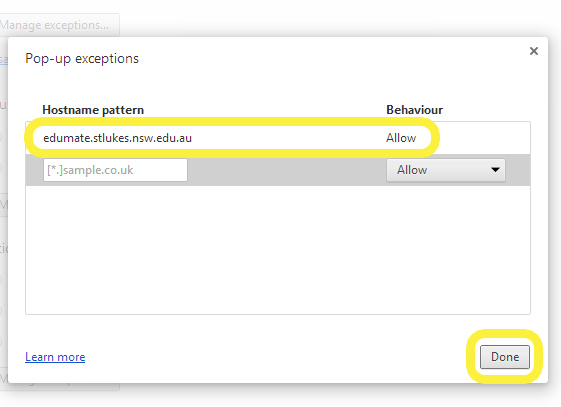
- Enter the address of the site you wish to allow to open pop-ups, eg, edumate.stlukes.nsw.edu.au, choose Allow from the drop down box, then select Done
Allowing Pop-ups in Safari on a MAC
- Select Safari, Preferences… , then under the Security tab uncheck Block Pop-up Windows
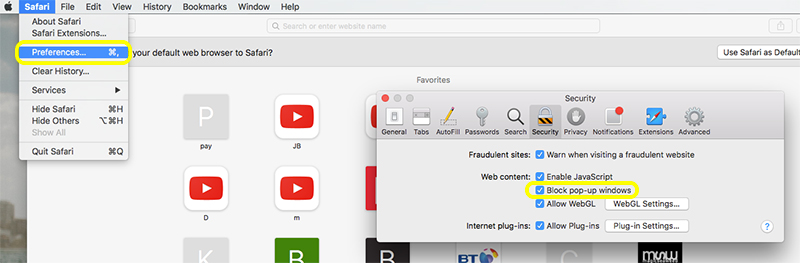
Allowing Pop-ups on an iPad
- In the Settings app, select Safari then slide the Block Pop-ups button to the off position – ie, not green