To embed a YouTube Video in Office
-
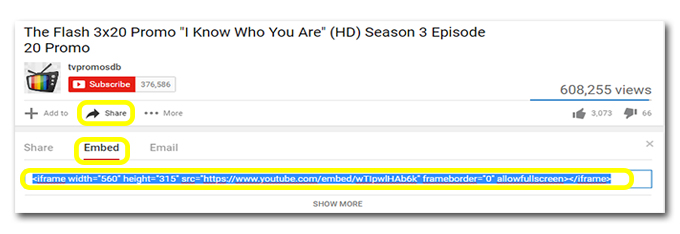
- Select the desired YouTube clip. Click the Share link under the video. Select the Embed tab and copy the code provided.
- Paste the embed code into your Office application, for example, PowerPoint. The process for this will differ depending on which operating system you are using:
- Select the desired YouTube clip. Click the Share link under the video. Select the Embed tab and copy the code provided.
- From the Insert tab select Store

- Search for YouTube in the Store and ADD the Web Video Player Add-in

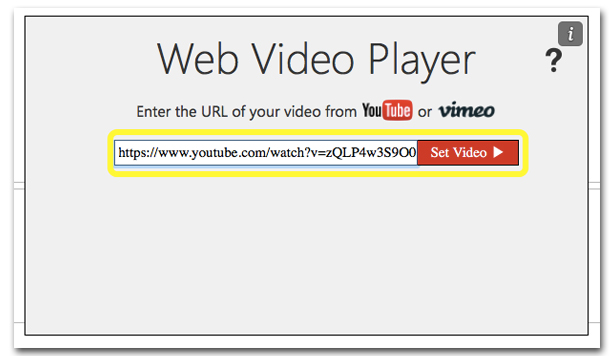
- Paste the code into the pop up box that appears and select Set Video
- PC users can either use the method described above for MAC users or use the following method:
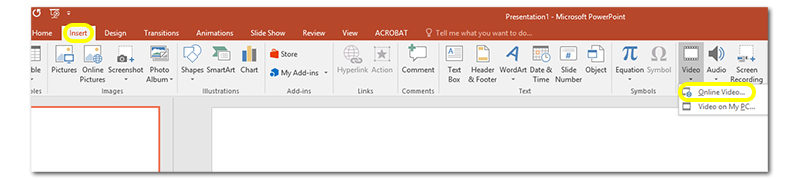
- From the Insert tab choose Video, then Online Video…
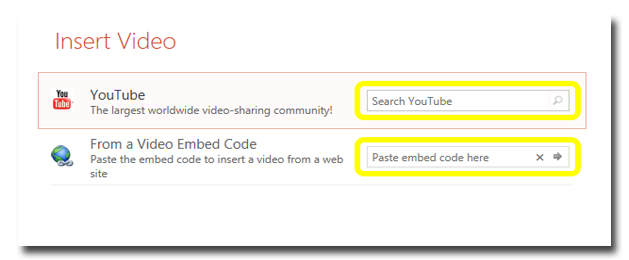
- You can paste the embed code into the box provided. If you don’t have the embed code you can search directly for a YouTube Video here.